Twitch Raid Preview Picker




Preview and raid Twitch channels directly from your streaming setup.
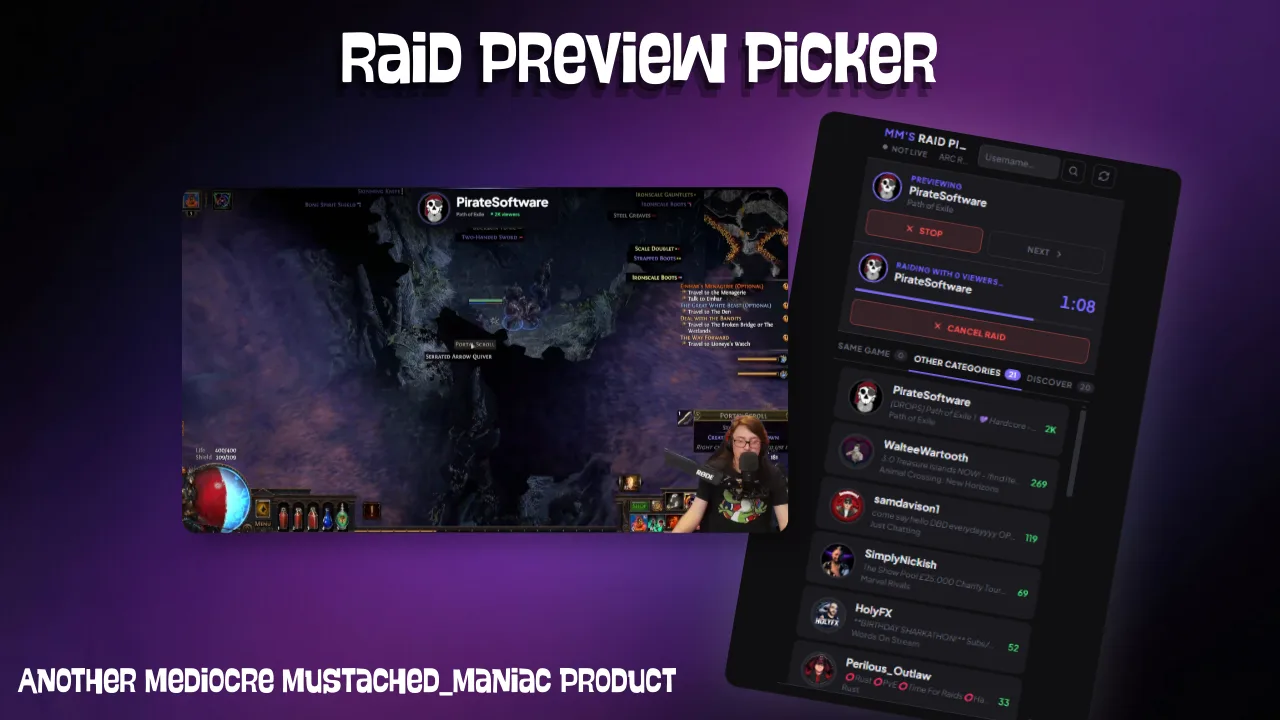
Download Twitch Raid Preview Picker
Click the button below to download Twitch Raid Preview Picker! If you find it useful, consider leaving a tip to support development.
This Streamer.bot extension allows streamers to browse live Twitch channels and initiate raids directly from their streaming setup. Channels are pulled live from the Twitch API and automatically sorted into three tiers — followed channels in your current category, followed channels in a different category, and live channels in your category that you don't follow — making it easy to find the perfect raid target.
RaidPicker_Refresh and RaidPicker_DoRaid) are provided but empty — use them if you want to fire custom logic on refresh or when a raid is confirmed.How Raid Picker Works
The extension has two components:
- Dock — A compact control panel you add to OBS/Meld/SLOBS. Channels are organized into three tabs:
- Same Game — Channels you follow that are live in your current game/category
- Other Categories — Channels you follow that are live in a different category
- Discover — Live channels in your category that you don't follow (use Load More to expand the list)
Use the Search bar at the top of the Dock to quickly find a specific channel by name across all three tabs.
- Overlay — A stylized card that displays for your viewers when you confirm a raid, showing the target channel's info before the raid fires.
Customizing the Overlay URL
Live Preview
Customizing the Dock URL
Keeping the Channel List Fresh
The Raid Picker Action queries the Twitch API and pushes an updated channel list to your Dock. You can trigger this:
- Manually via a chat command or Stream Deck button
- Automatically by adding a Timed Action in Streamer.bot (every 5 minutes is recommended)
- By pressing the refresh button in the Dock
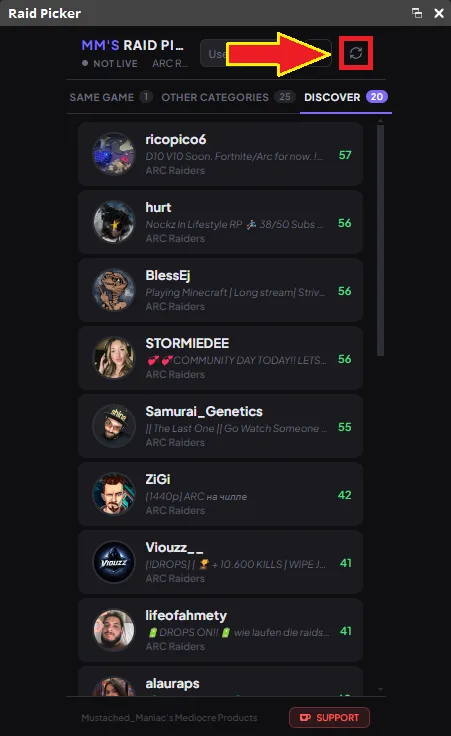
Initiating a Raid
Follow the steps below to initiate a raid from the dock:
Step 1 — Select a Channel
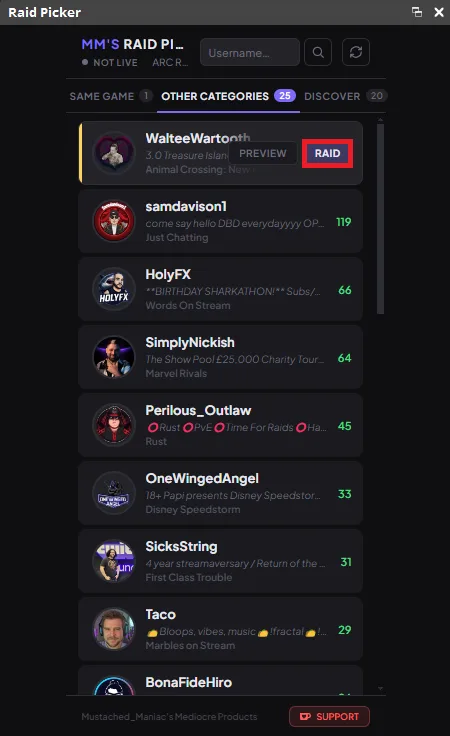
Hover over any channel card and click the Raid button to select it
Step 2 — Confirm the Raid
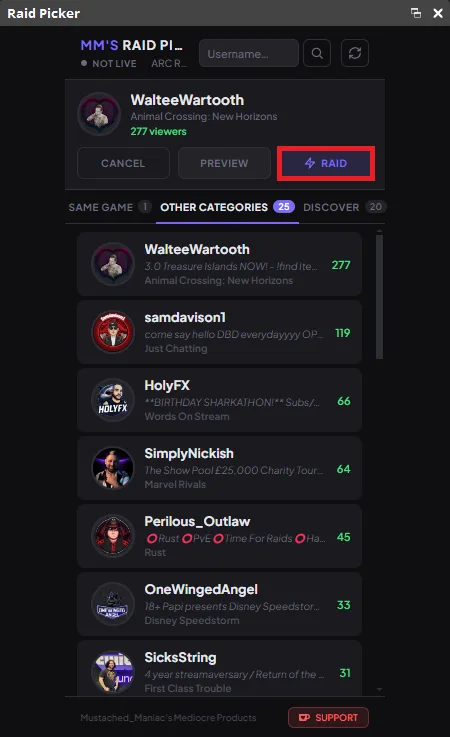
A raid card will appear with the channel details — press Raid again to confirm
Step 3 — Raid Initiated
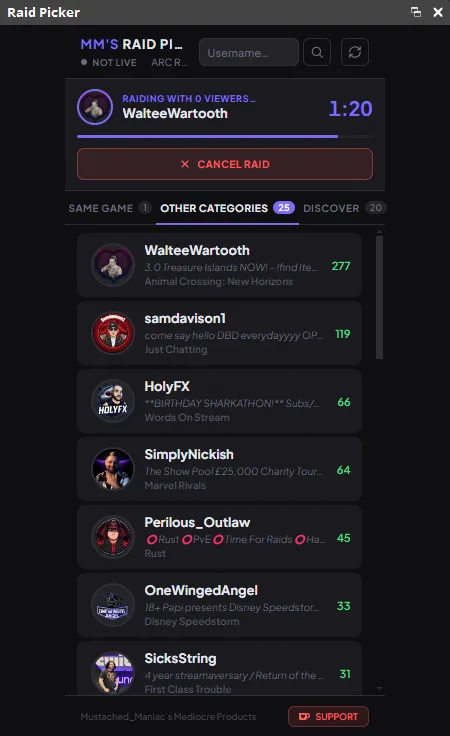
The overlay displays for your viewers with a cancel button while the raid countdown runs

