Message Highlighter






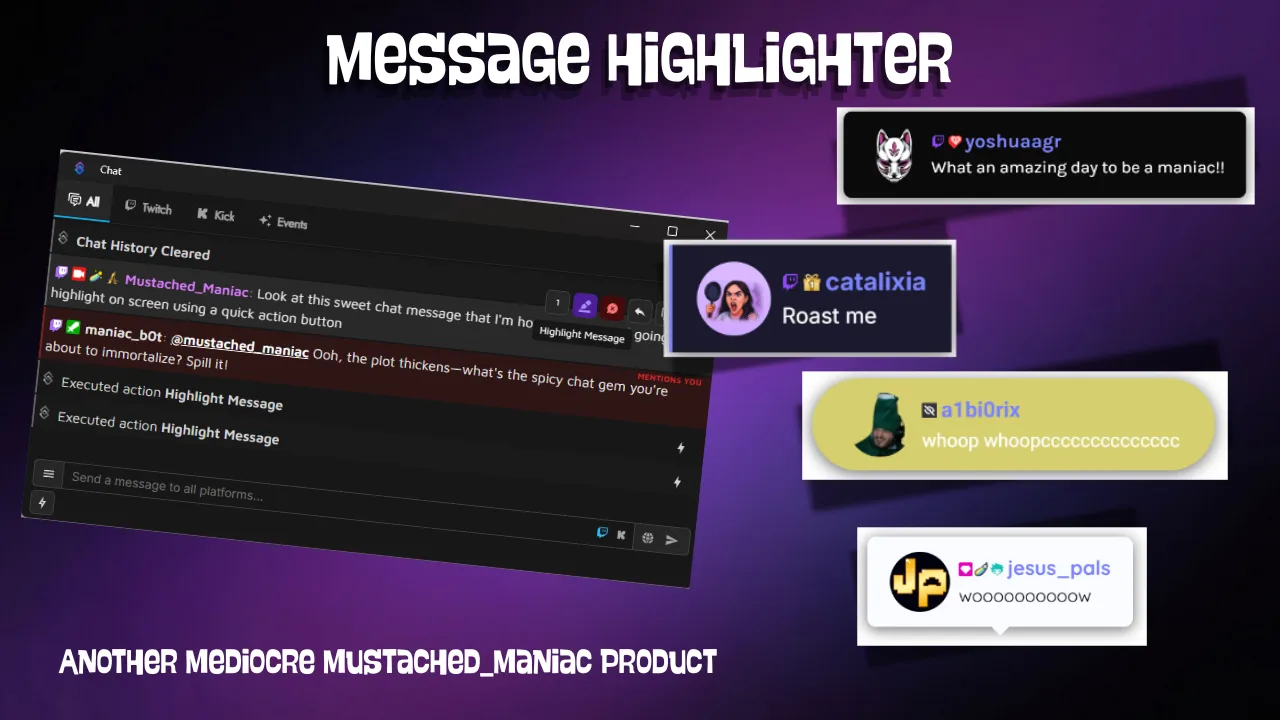
Pop any stream message onto your screen in a customizable overlay. Wire it to first words, chat, resubs, tips — anything with a message — and pick the shape that fits your stream.
Download Message Highlighter
Click the button below to download Message Highlighter! If you find it useful, consider leaving a tip to support development.
Message Highlighter is a lightweight overlay that pops a message onto your screen whenever you want. Attach it to any Streamer.bot trigger that carries a message — first words, chat commands, resubscriptions, tips, bits, whatever you like — and the overlay handles the rest.
Adding the DLL
Setup
Add one of the overlays below as a browser source, then import the Streamer.bot action and attach your triggers to it.
Choose your style below, configure colors, font, and other options, then copy the URL directly into OBS, Meld Studio, or SLOBS as a browser source.
Live Preview
Add your Message Highlighter Overlay to OBS, Meld Studio, or SLOBS
Streamer.bot Action
Once imported, attach the Highlight Message action to any trigger that carries a message. Common choices include:
- First Words — fires when a viewer sends their first chat message in a stream
- Chat Message — trigger on any message, a keyword, or a specific command
- Resub — show the subscriber's message on screen
- Bits / Cheer — highlight the cheer message
- Channel Point Redemption — any reward that requires the viewer to type a message
Adding a Quick Action to the Chat Dock
A Quick Action lets you trigger the action with a single click straight from the Streamer.bot chat dock — handy for manually highlighting a message mid-stream or dismissing one without diving into Streamer.bot's action list.
Step 1 — Open Chat Settings
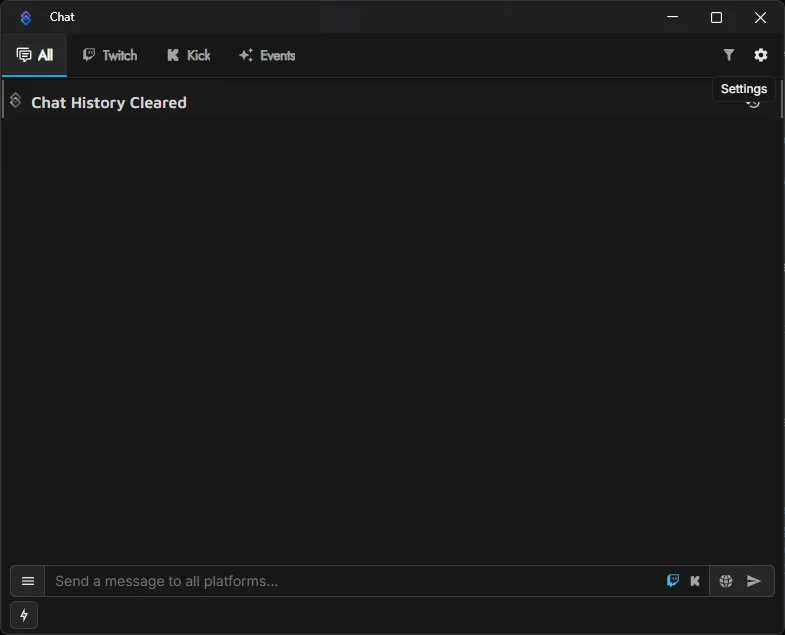
Click the gear icon in the top-right corner of the Streamer.bot chat dock to open the chat settings panel.
Step 2 — Add a Quick Action
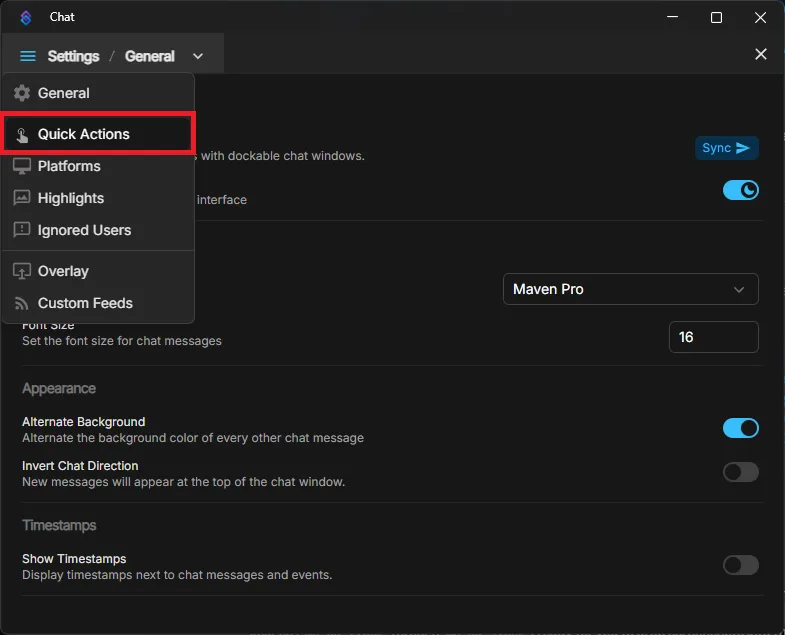
Hover over the hamburger menu (three lines) in the top-left of the panel, then select Quick Actions from the menu that appears.
Step 3 — Assign the Highlight Action
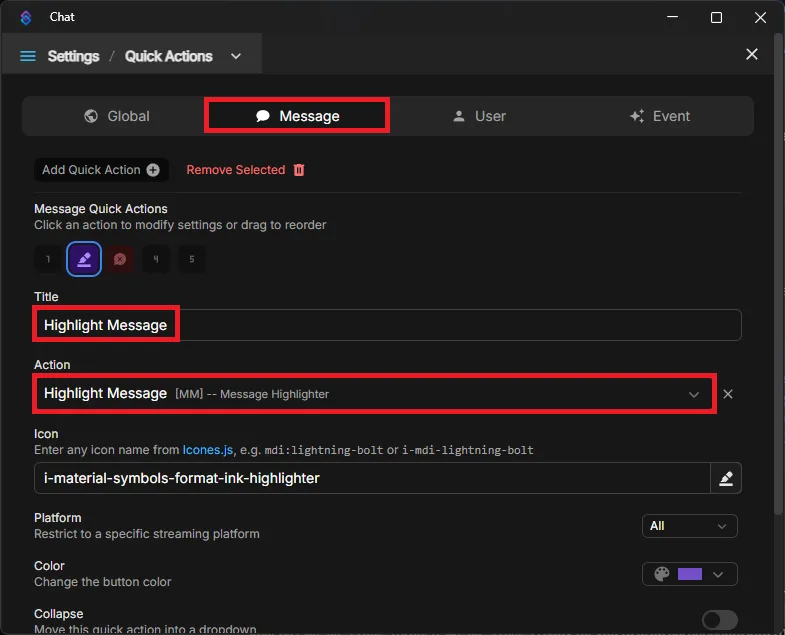
Click the + to add a new Quick Action. Set the type to Message, give it a name (e.g. "Highlight Message"), then select your Highlight Message action from the Action dropdown.
Step 4 — Optionally Add a Dismiss Action
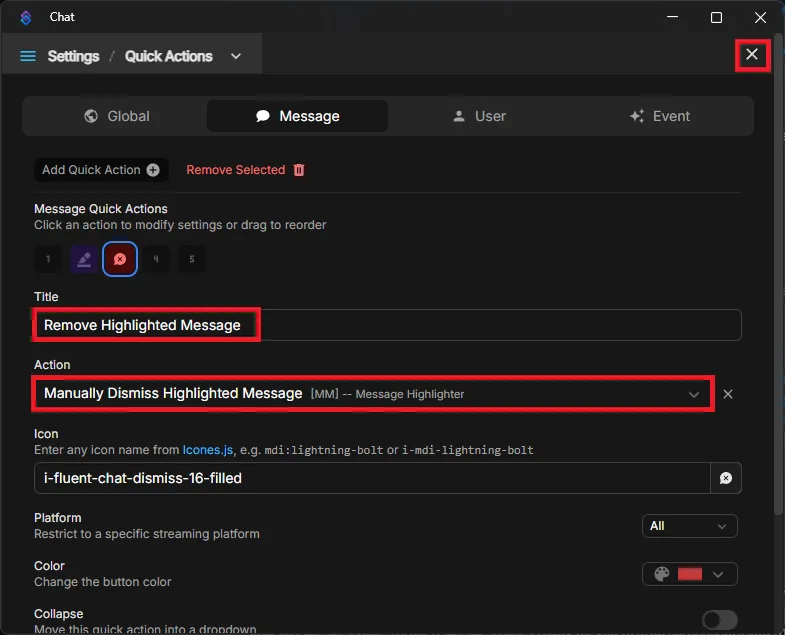
Repeat step 3 to add a second Quick Action for the Remove Highlighted Message action. When you're done, close the panel with the X in the top-right corner.
Streamer.bot Arguments
The following arguments are sent to the overlay with each message.
| Argument | Type | Description |
|---|---|---|
userName | string | The user's login name |
displayName | string | The user's display name (falls back to userName if unavailable) |
message | string | The message text to show on screen |
userImage | string | URL of the user's profile picture — shown when avatar is enabled |
platform | string | Platform name (twitch, kick, youtube) — used for the platform icon |