Streamdeck Button Magic




Takes the profile picture from recent Twitch, Kick, or YouTube chatters and assigns them to a button for quick actions.
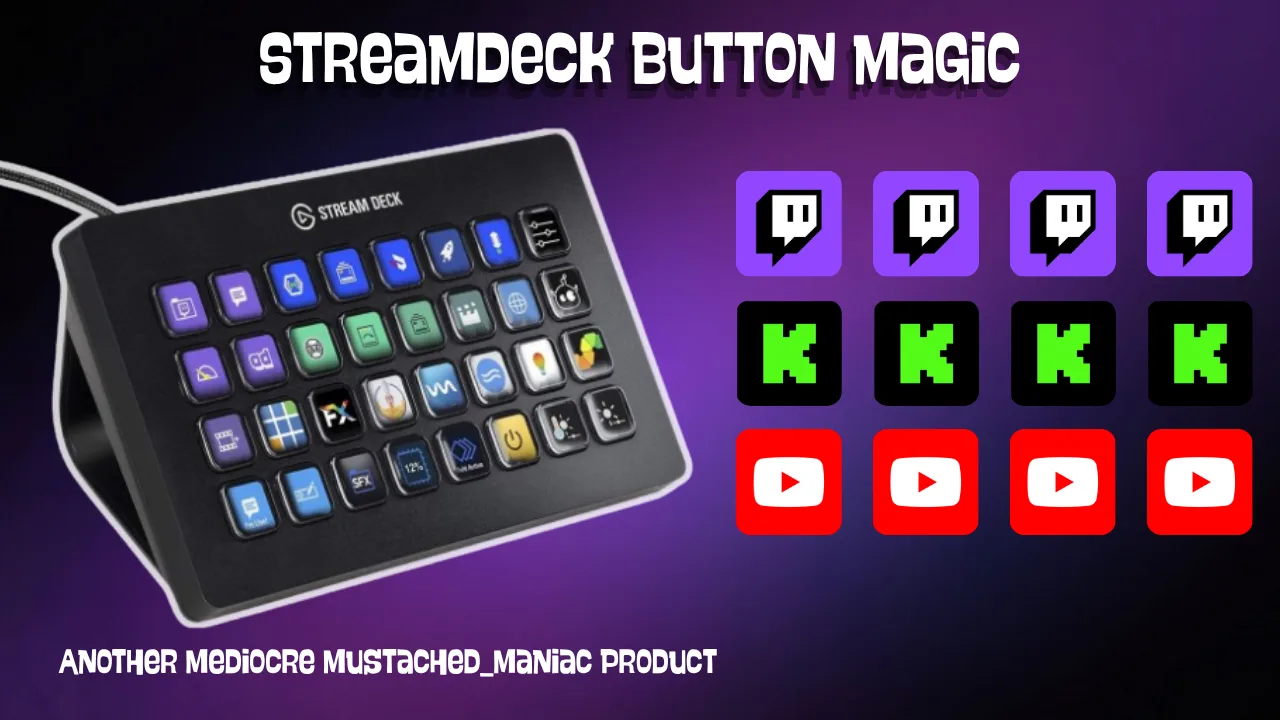
Download Streamdeck Button Magic
Click the button below to download Streamdeck Button Magic! If you find it useful, consider leaving a tip to support development.
Get the Button ID from the Stream Deck Software
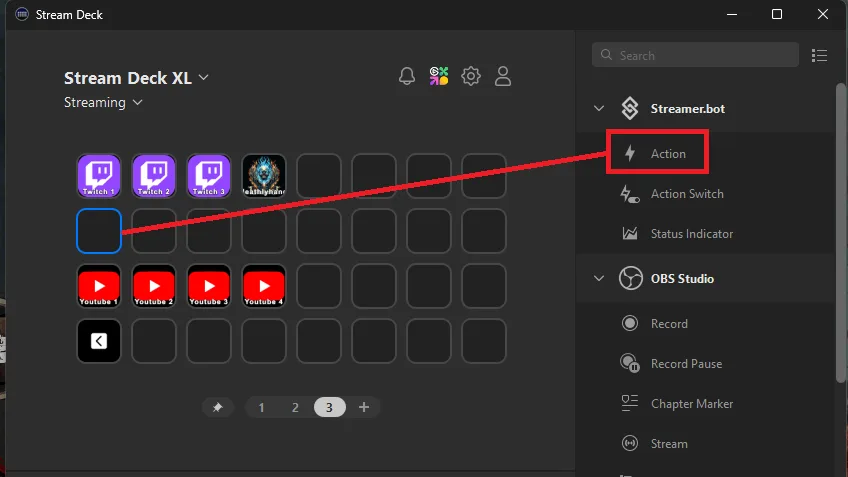
Navigate your Elgato Stream Deck Software and drag the Streamer.bot Action to the target button.
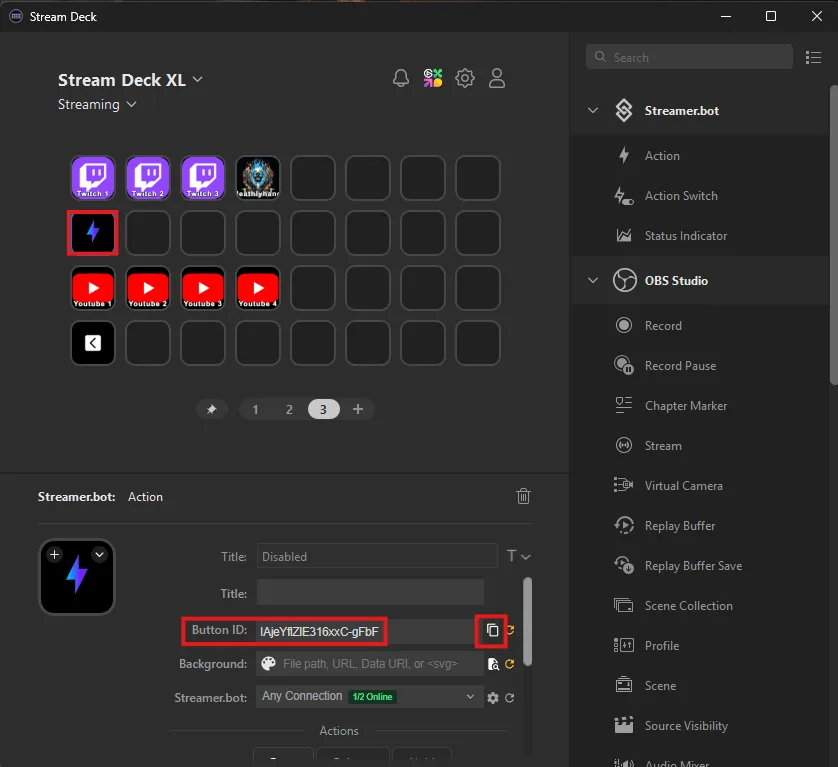
In the Stream Deck software, select the button that you just assigned the Action to and then press the Copy button next to the Button ID. Alternatively, you can edit that field and set your own ID (twitch1, twitch2, etc).
After copying the Button ID, go to Streamer.bot and click on the StreamDeck Button Magic Action and then open up the Twitch/YouTube Buttons Folders. Double-click on one of the Set Argument Sub-Actions and paste the copied Button ID into the Value field and press Ok.
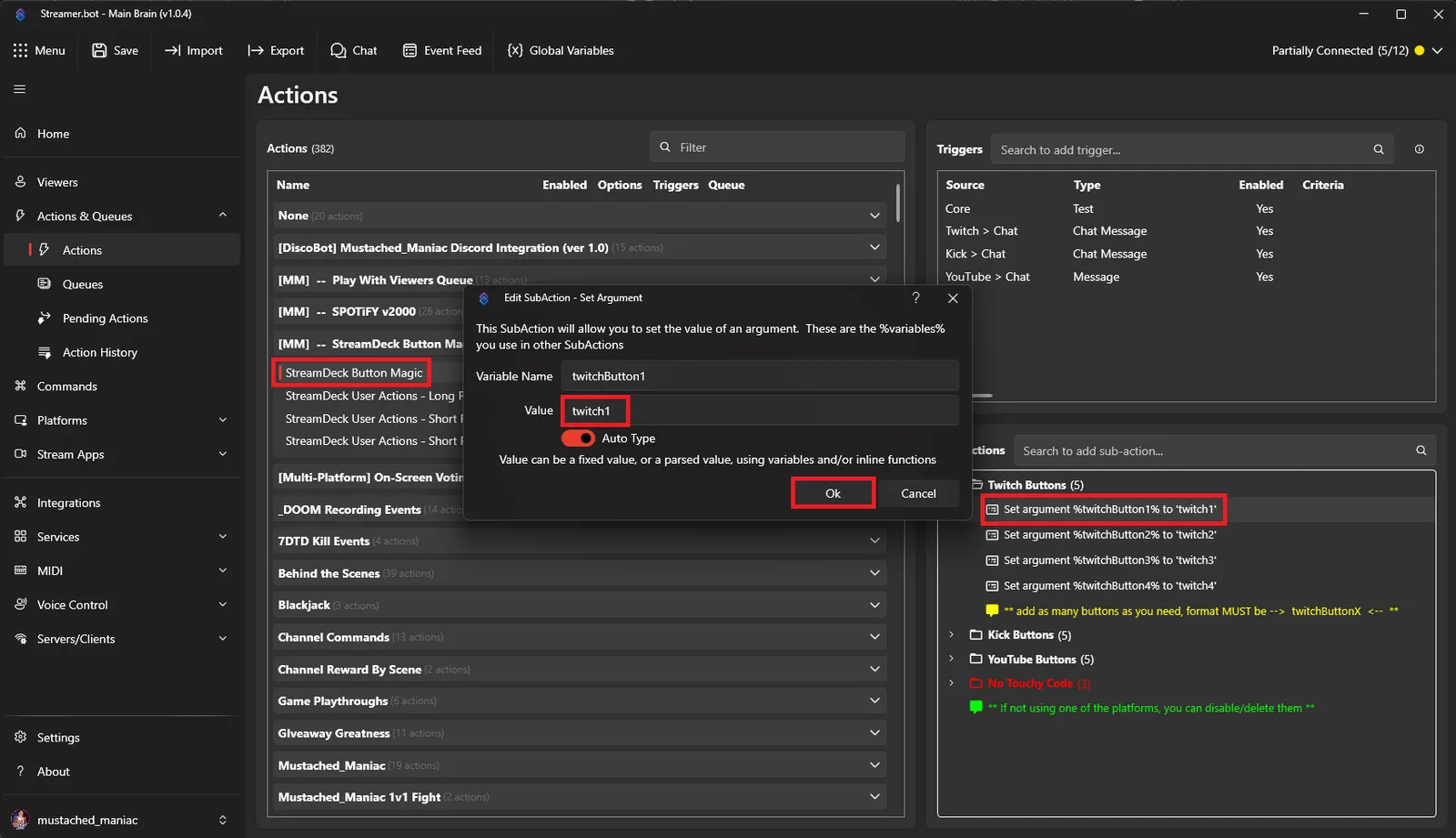
Duplicate the Set Argument Sub-Action for as many buttons as you need. If you are only using one platform, you can delete the others.Mapping the Stream Deck Buttons in Streamer.bot
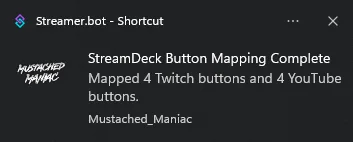
Once you have added all your desired Button IDs, Right-Click on the Test Trigger and press Test Trigger. You should get a Windows Toast Notification indicating how many buttons it successfully mapped.
You can also verify successful Stream Deck button mapping by navigating to your Stream Deck software and seeing either the Twitch, Kick, or YouTube logos for the assigned buttons.
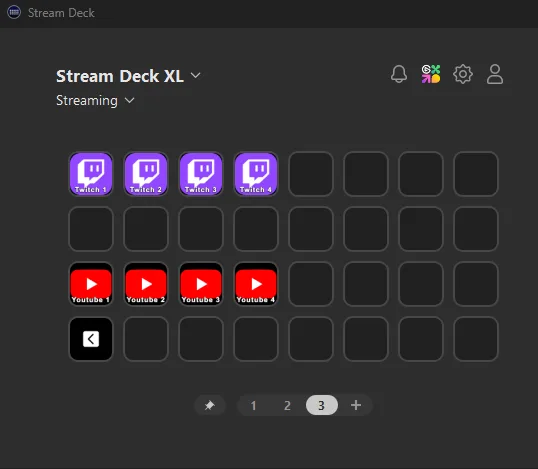
Assigning the Streamer.bot Actions to Stream Deck Buttons
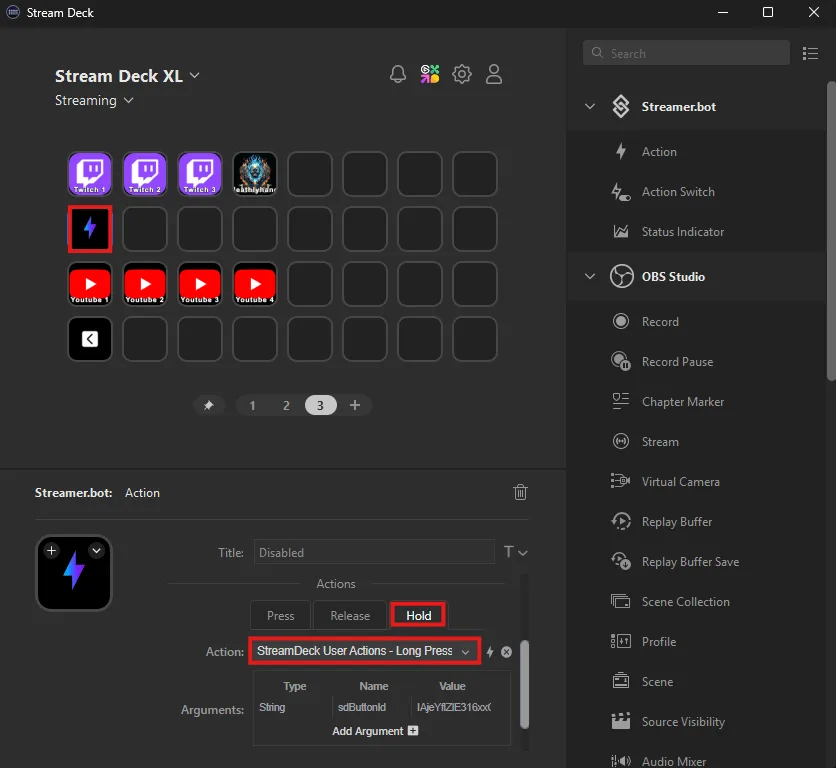
Go back to the Stream Deck Software and click one of your mapped buttons. Scroll down to the Press Tab and Search for StreamDeck User Actions - Short Press.
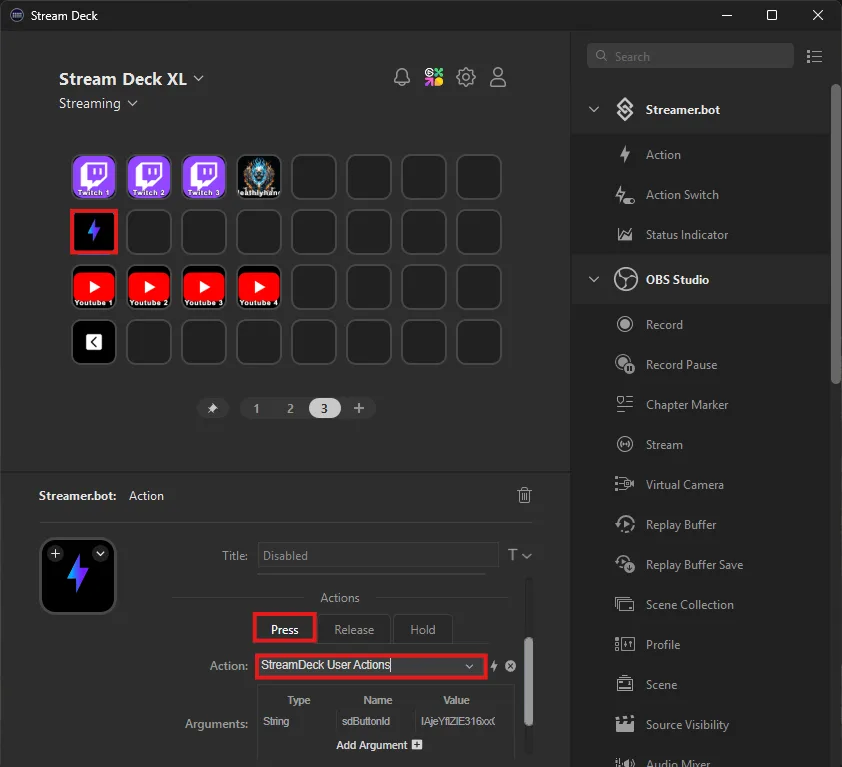
Then press on the Hold Tab and Search for StreamDeck User Actions - Long Press (or whatever you named the duplicated Action).