Govee Lighting and Product Controls
Platforms


Software


Gives control of supported Govee products via command or channel point redeem.
1,612Downloads
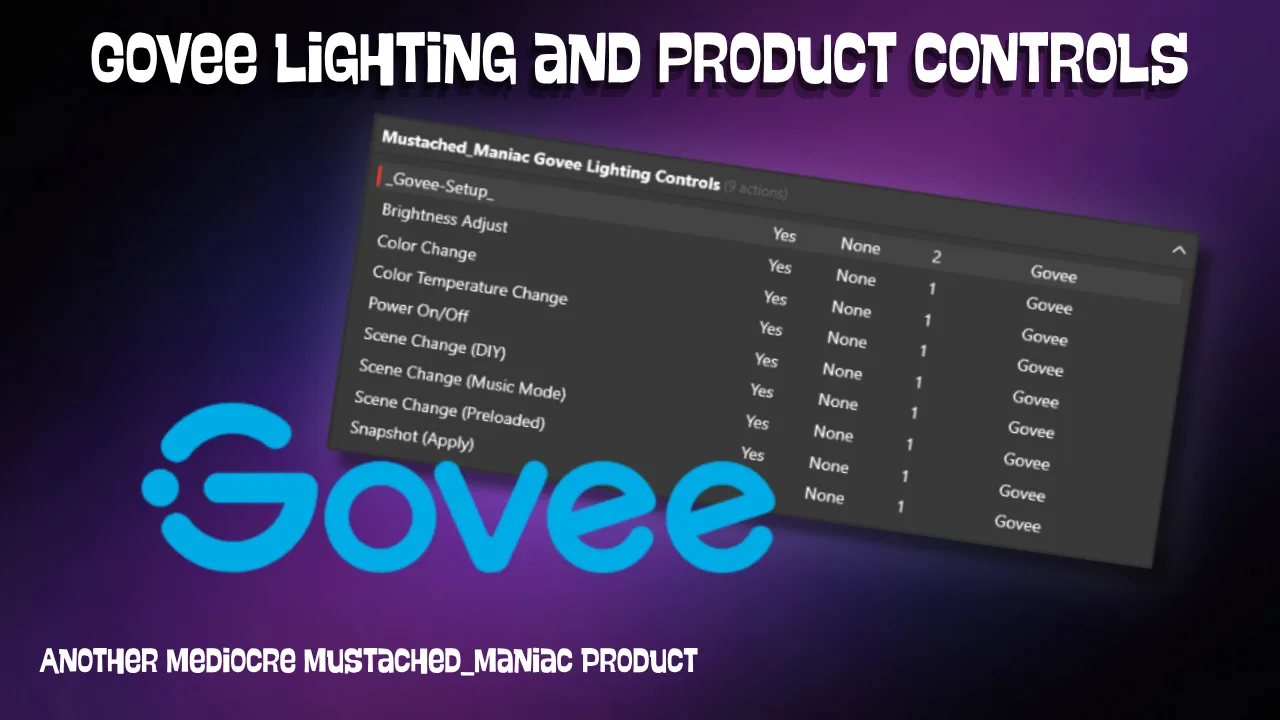
Download Govee Lighting and Product Controls
Click the button below to download Govee Lighting and Product Controls! If you find it useful, consider leaving a tip to support development.
Control your Supported Govee Lights directly from Streamer.bot without the need for Lumia or IFTTT. If you do not already have an API Key, follow the next step. If you do, skip to this step
How-To Install Govee Lighting Extensions
Obtaining your Govee API Key
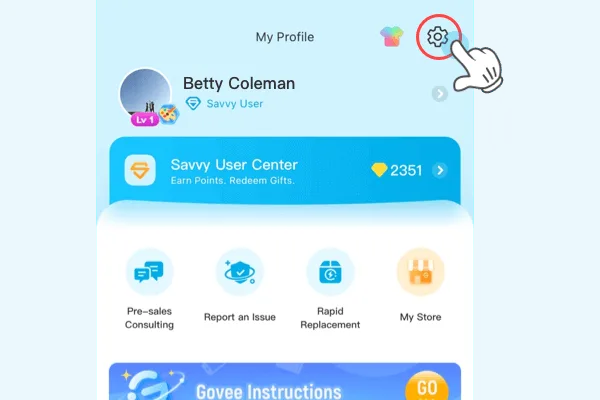
- From the Govee App, click "Settings"
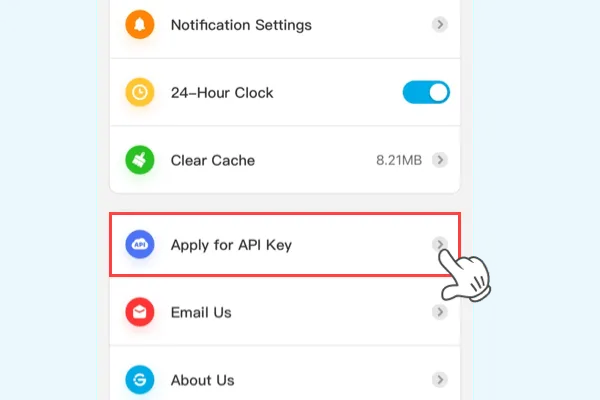
- Click on "Apply for API Key"
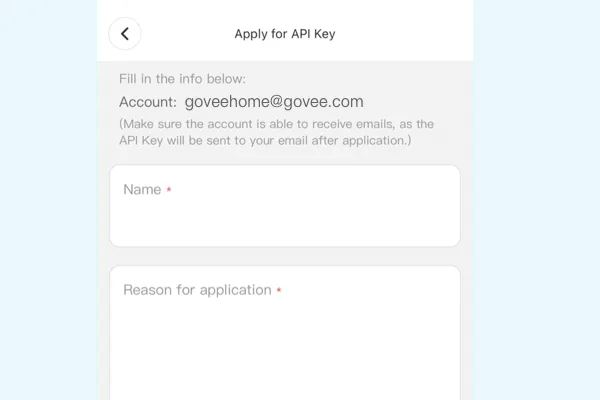
- Fill out the information and you should receive an email (to the address logged into Govee) within a few minutes with your API Key.
- Reason for application: Control lighting from a program (or some other super awesome reason, it really doesn't matter what you put here.)
Setting up the Govee Lighting Extension
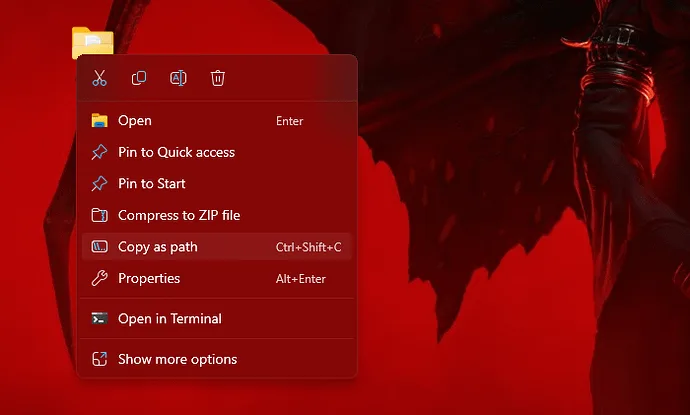
- Create a new folder folder on your computer (I named mine 'Govee').
- Right-Click the new folder and select "Copy as Path".
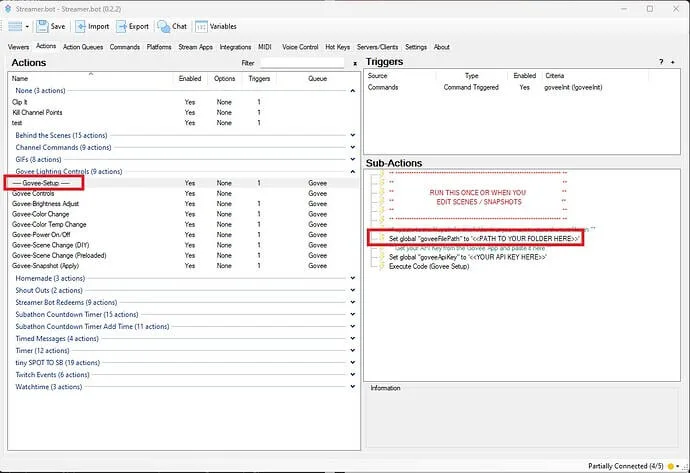
- Under the
Govee-SetupAction, paste the copied file path to the goveeFilePath global.
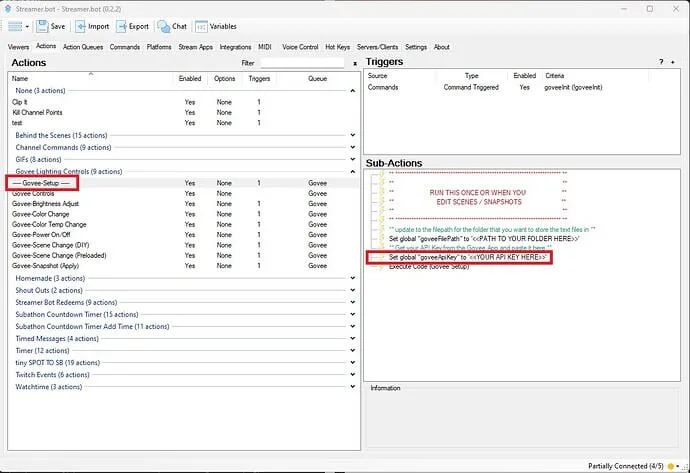
- Now paste your API Key to the 'goveeApiKey' global.
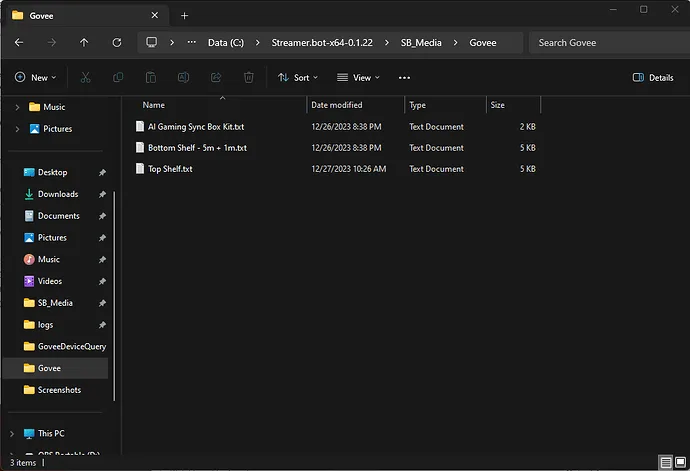
- Either run the command by typing
!goveeInitinto your chat, or right click on theTriggerand clickTest Trigger. - Verify that your devices all show up in your 'Govee' folder.
- Congratulations, you are now ready to begin controlling your Govee Lights!
How-To Use the Govee Lighting Actions
- It is highly recommended to
Duplicatethe actions byRight-Clickingand giving them unique names for each of your Govee Devices. This will prevent having to change the Device ID and Model every time that you'd like to make changes.
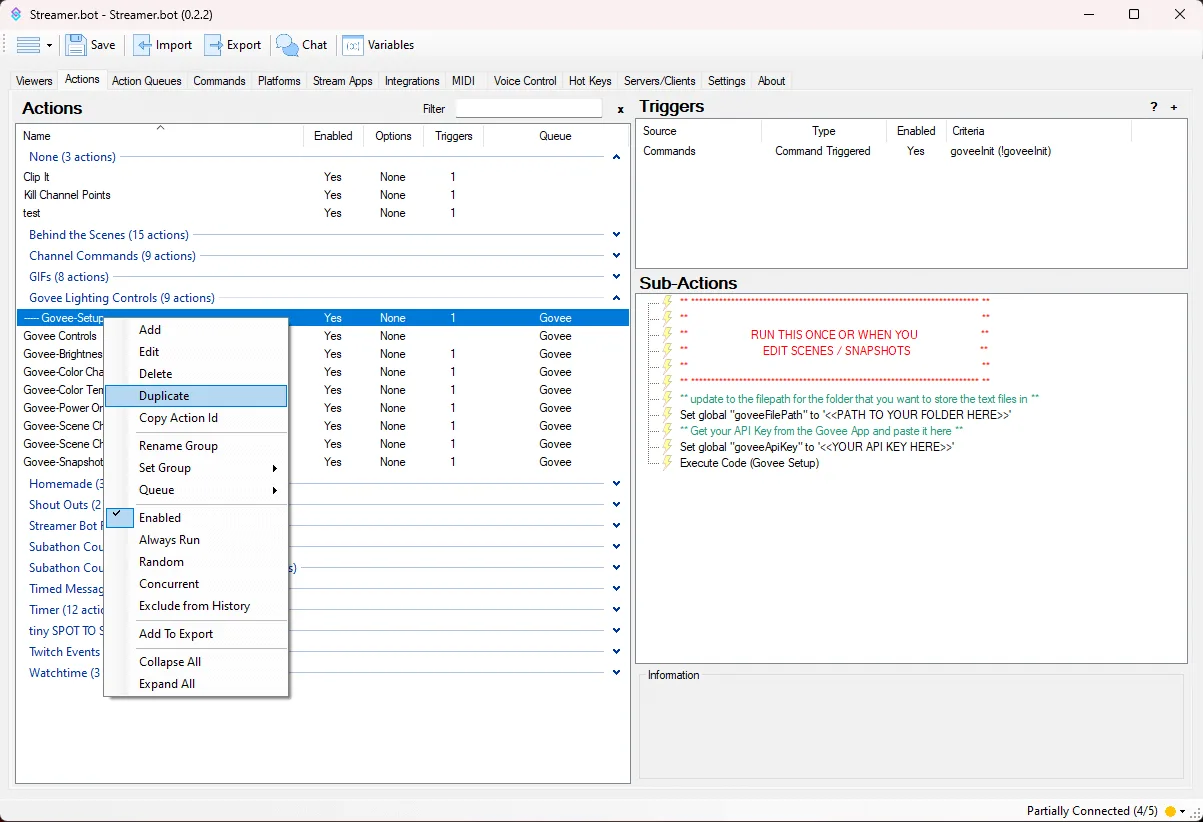
- You can find the information for each device, like the Device ID, Model, and Snapshot or Scene Numbers within each respective .txt. document.
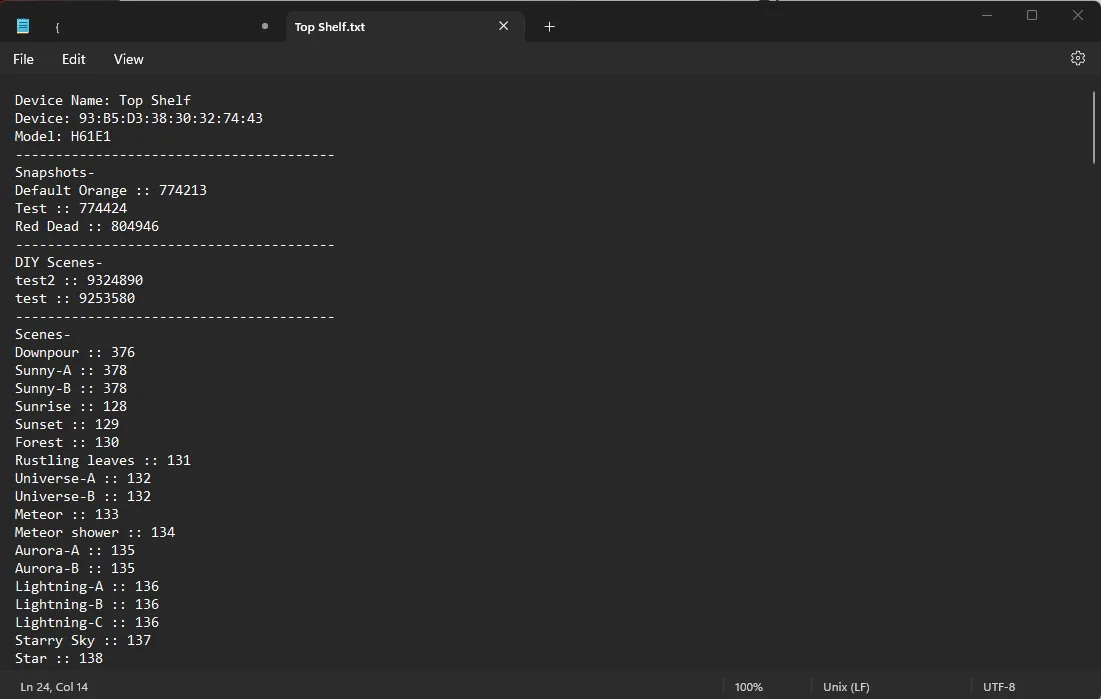
- To change a particular light, go the
Actionthat you'd like to execute and update the%deviceNumber%Argument to its respective value from the text files.
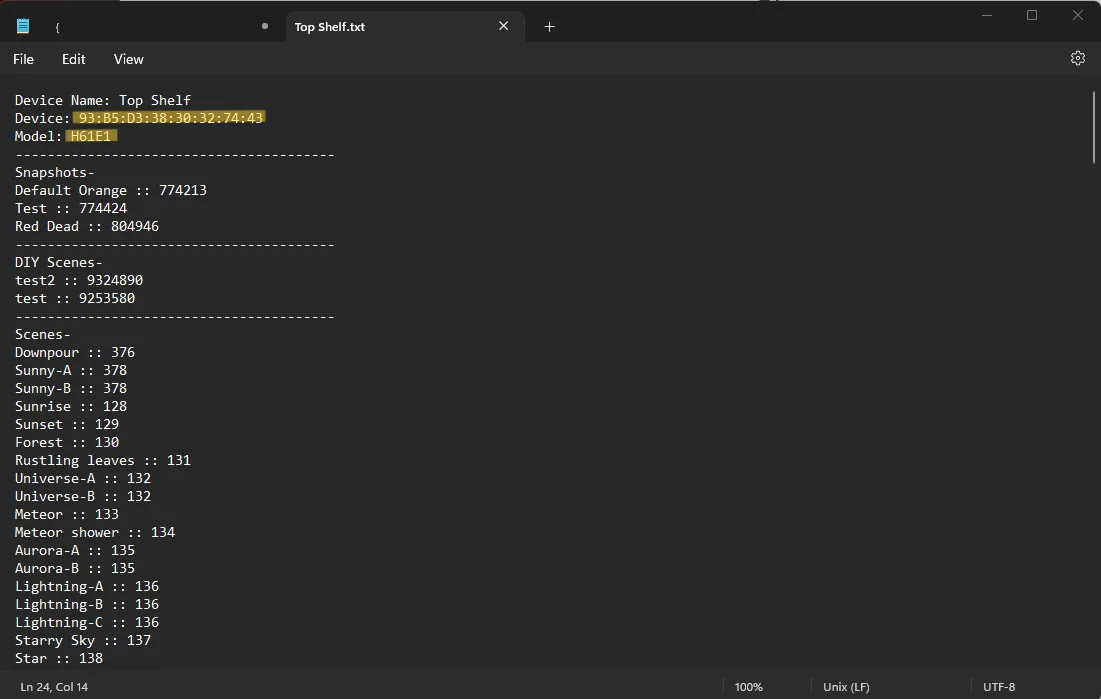
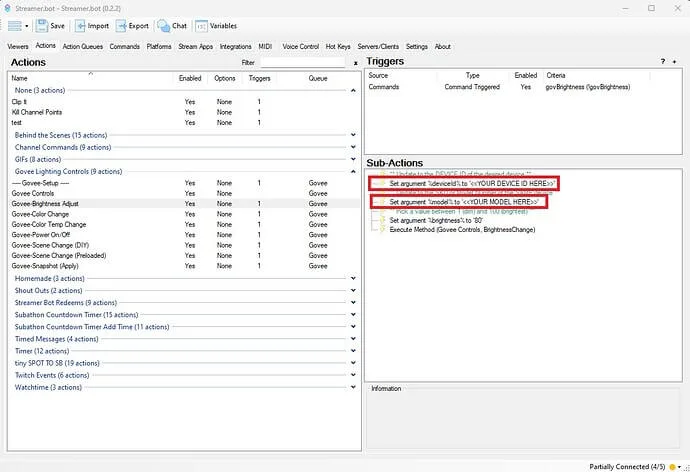
- Once updated, ensure you click
Saveat the top of Streamer.bot and either type the command in your chat, or byRight-ClickingtheTriggerand clickingTest Trigger.
Govee Lighting Extension Available Controls
| Command | Controllable Feature | Description |
|---|---|---|
| !govBrightness | Brightness | Adjust the 'Brightness' (value must be between 1-100). |
| !govColor | Color | Select a color from within Streamer.Bot to apply it. |
| !govColorTemp | Color Temperature | Adjust the 'Color Temperature' (value must be between 2000 and 9000). |
| !govPower | Power On/Off | Turn the selected devices 'On' or 'Off'. |
| !govDScene | DIY Scene Change | Apply selected DIY Scene to your device. |
| !govMScene | Music Scene Change | Apply selected Music Scene to your compatible device. |
| !govPScene | Preloaded (Dynamic) Scenes | Apply one of the preloaded Dynamic Scenes to your device. |
| !govSnapshot | Snapshots | Apply Selected Snapshot to your device. |
Setting Govee Lighting Brightness
- Set your Device Number (found in the .txt files).
- Pick a value between 1 (dim) and 100 (brightest).
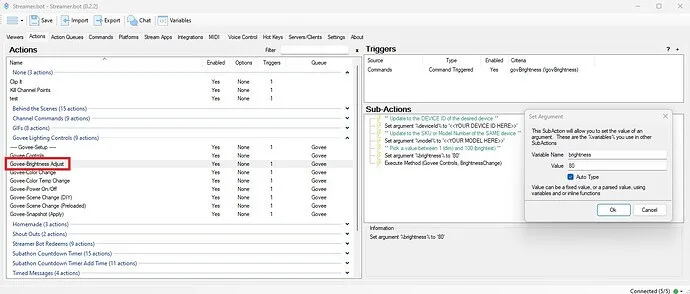
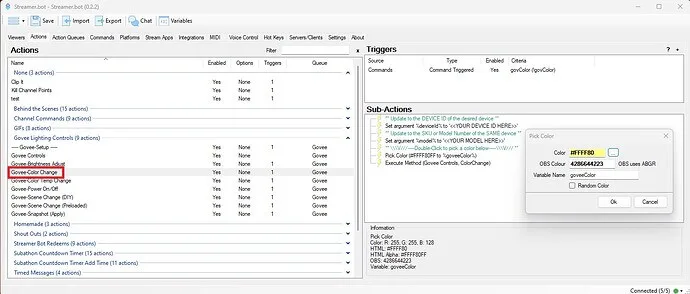
Setting Govee Lighting Color
- Set your Device Number (found in the .txt files).
- Pick a color from the Streamer.bot color selection.
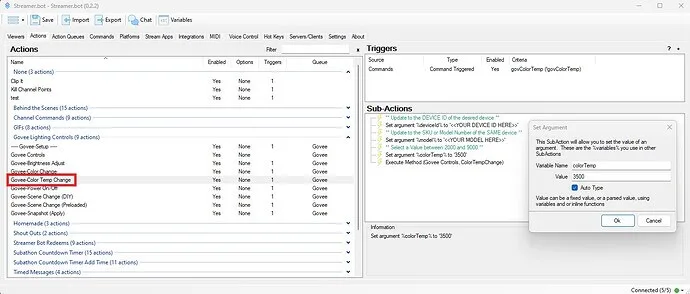
Setting Govee Lighting Color Temperature
- Set your Device Number (found in the .txt files).
- Pick a value between 2-9000K.
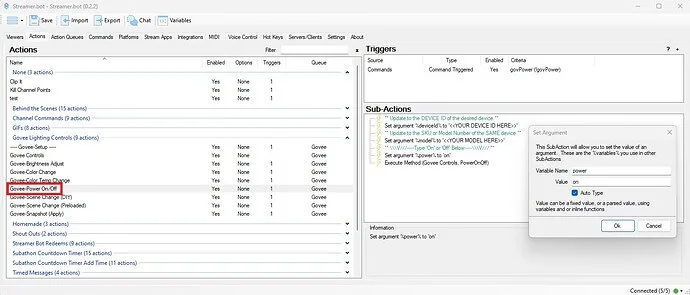
Using the Govee Lighting Power On/Off Function
- Set your Device Number (found in the .txt files).
- Type either 'On' or 'Off' (it is NOT case sensitive).
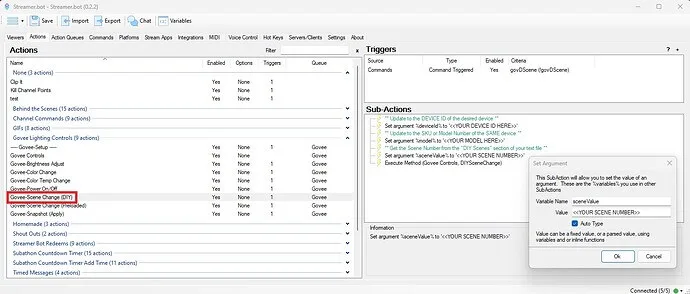
Setting Govee Lighting DIY Scenes
- Set your Device Number (found in the .txt files).
- Pick your scene number from the text file.
Setting Govee Lighting Music Scenes
- Set your Device Number (found in the .txt files).
- Pick your scene number from the text file.
- Set the sensitivity level (0-100).
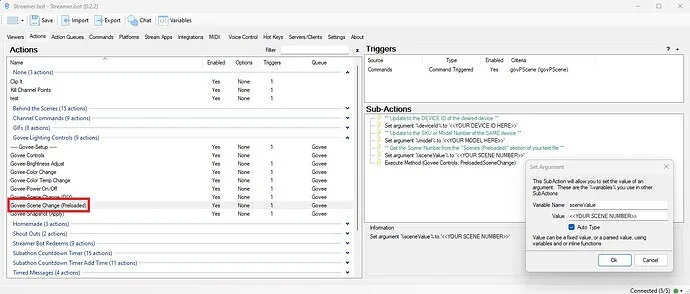
Setting Govee Lighting Dynamic (Preloaded) Scenes
- Set your Device Number (found in the .txt files).
- Pick your scene number from the text file.
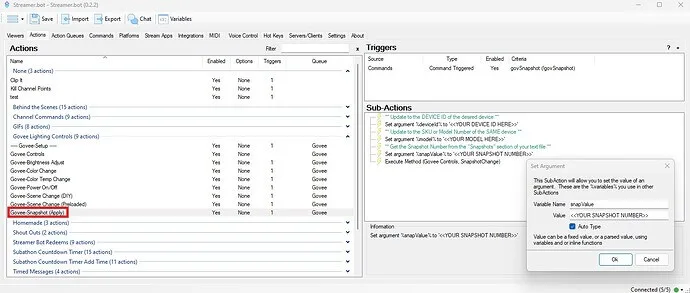
Applying Govee Lighting Snapshot
- Set your Device Number (found in the .txt files).
- Pick your Snapshot number from the text file.
Changelog
Improvementv2.1 Minor improvementsDec 12, 2025
Updatev2.0 Version 2.0 overhaulDec 7, 2025
Releasev1.0 Initial releaseAug 17, 2024