Custom Twitch Clip Creator
With this extension, you can create custom Twitch clips with ease. Just follow the steps below to get started.
The command is set to 'Everyone' so it will work for everyone in the chat. If you want to limit it to a specific user or role, you can change the command settings in Streamer.bot.
Download from Ko-fi
Setting it Up
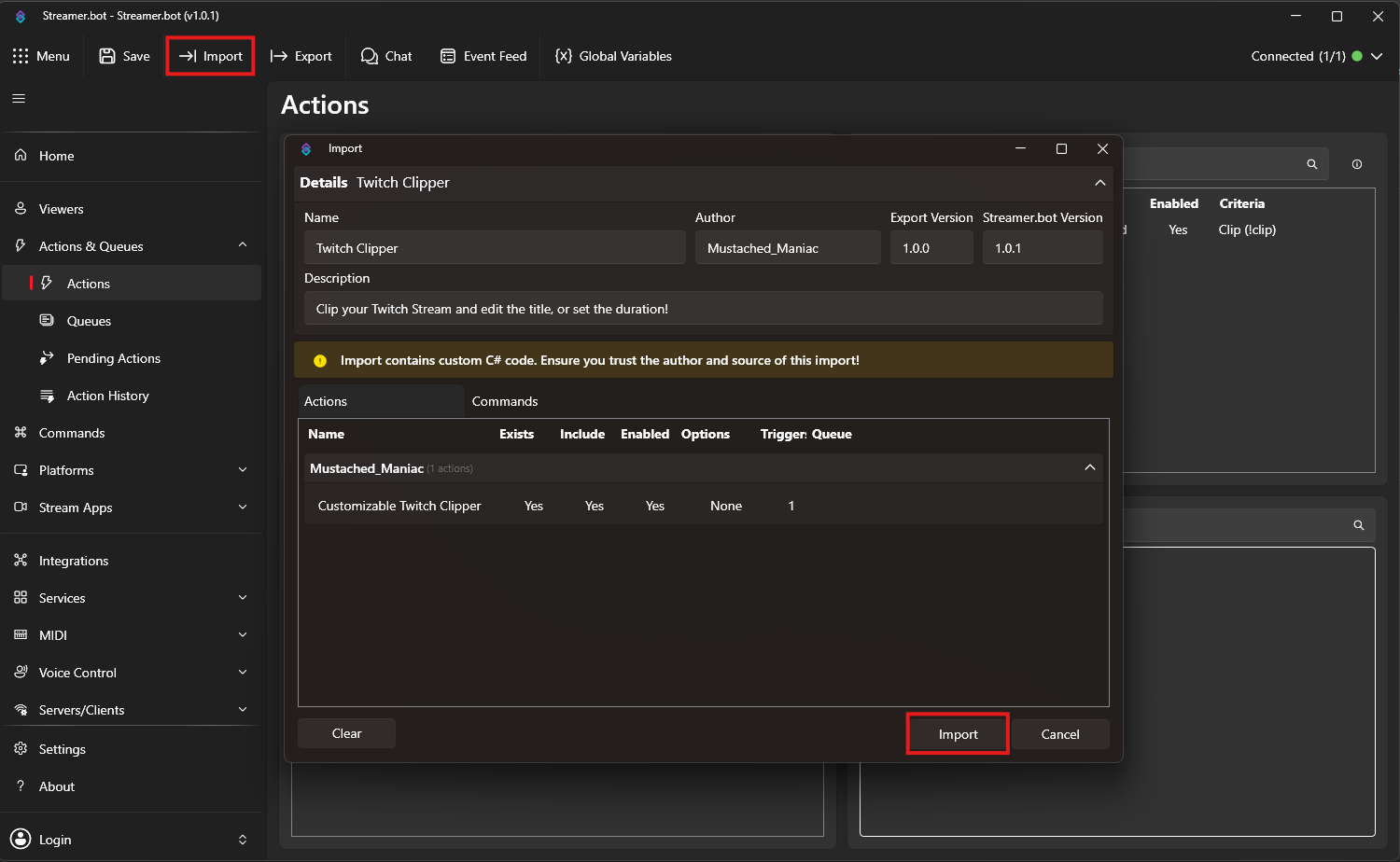
In Streamer.bot click the Import button in the top menu. Drag the downloaded .mm file into the Import String field and click Import. You will see 1 Action and 1 Command
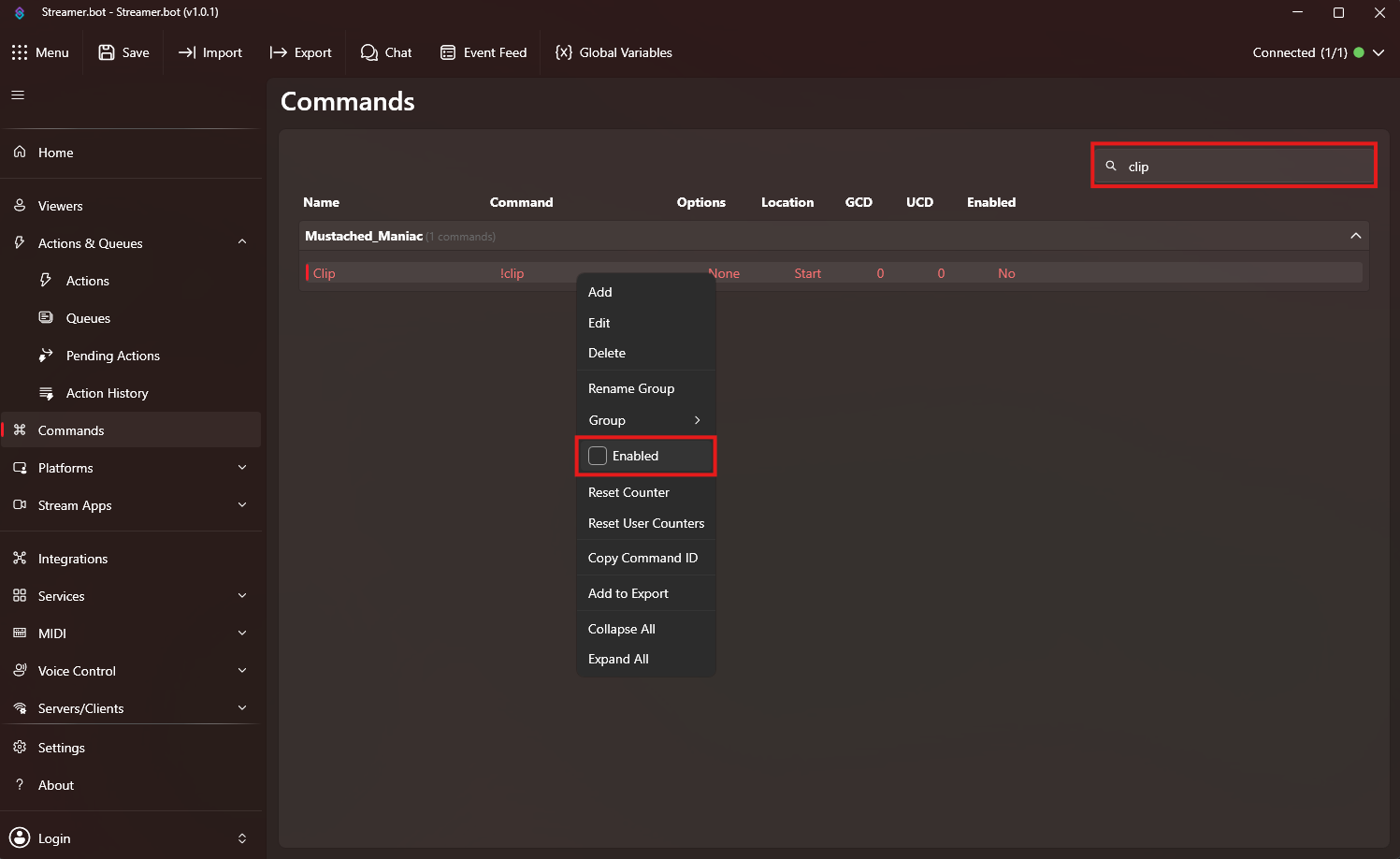
Once imported, head over to the Commands tab, type clip in the Filter box, Right-Click on the Command and press Enable.
Custom Twitch Clip Creator Usage
Out of the box, you can use the !clip command to create a custom Twitch clip, it will use the default stream title and a duration of whatever is set in 'Configurable Options'.
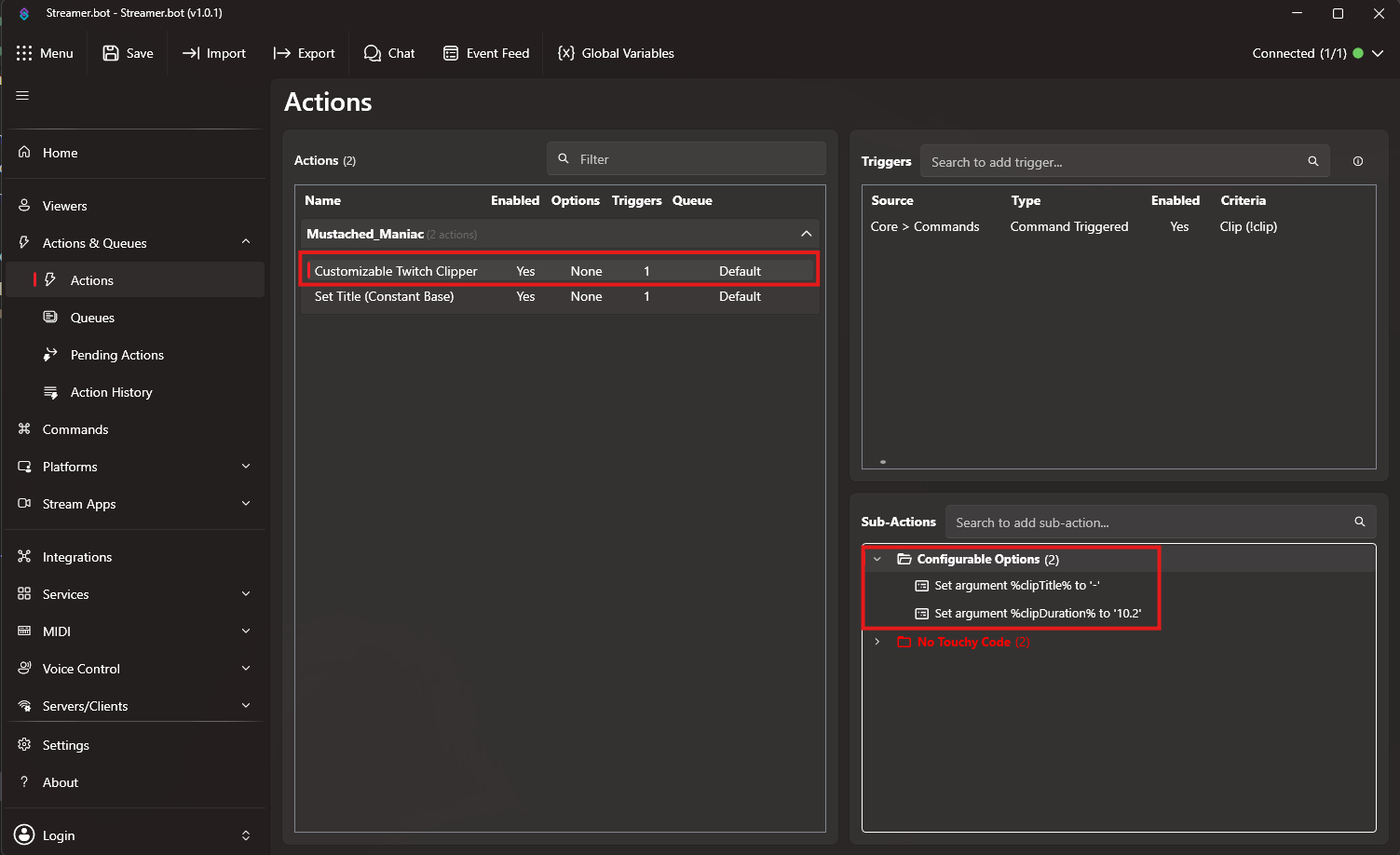
If you would like to customize the title and duration of the clip, you can use the !clip command with the following syntax:
!clip 20 I think he farted?!
- In the above example,
20is the duration of the clip in seconds andI think he farted?!is the title of the clip.
Alternatively, you can use the !clip command with just the title:
!clip I think he farted?!
- In this example, the duration will default to whatever is set in 'Configurable Options'.
Available Arguments for Custom Twitch Clip Creator
After the clip command is ran, and the clip is created, you can use the following arguments to do things like send confirmation messages, post to Discord, etc.:
| Argument | Description |
|---|---|
%clipSuccess% | True/False (useful for conditional logic). |
%clipTitle% | The title of the clip that was created. |
%clipDuration% | The duration of the clip that was created in seconds. |
%clipCreator% | The creator of the clip that was created. Twitch will ALWAYS show the Broadcaster as the creator on their end. |
%clipId% | The ID of the clip that was created. |
%clipUrl% | The URL of the clip that was created. |
%clipEmbedUrl% | The embed URL of the clip that was created. |
%clipEditUrl% | The edit URL of the clip that was created. |
Example Logic Flow for Custom Twitch Clip Creator
In the example below, we are going to send a message to chat if the clip was successfully created (and a Discord webhook), and if not, we will send an error message.
Add an If/Else Statement, found under Core -> Logic -> If/Else Statement
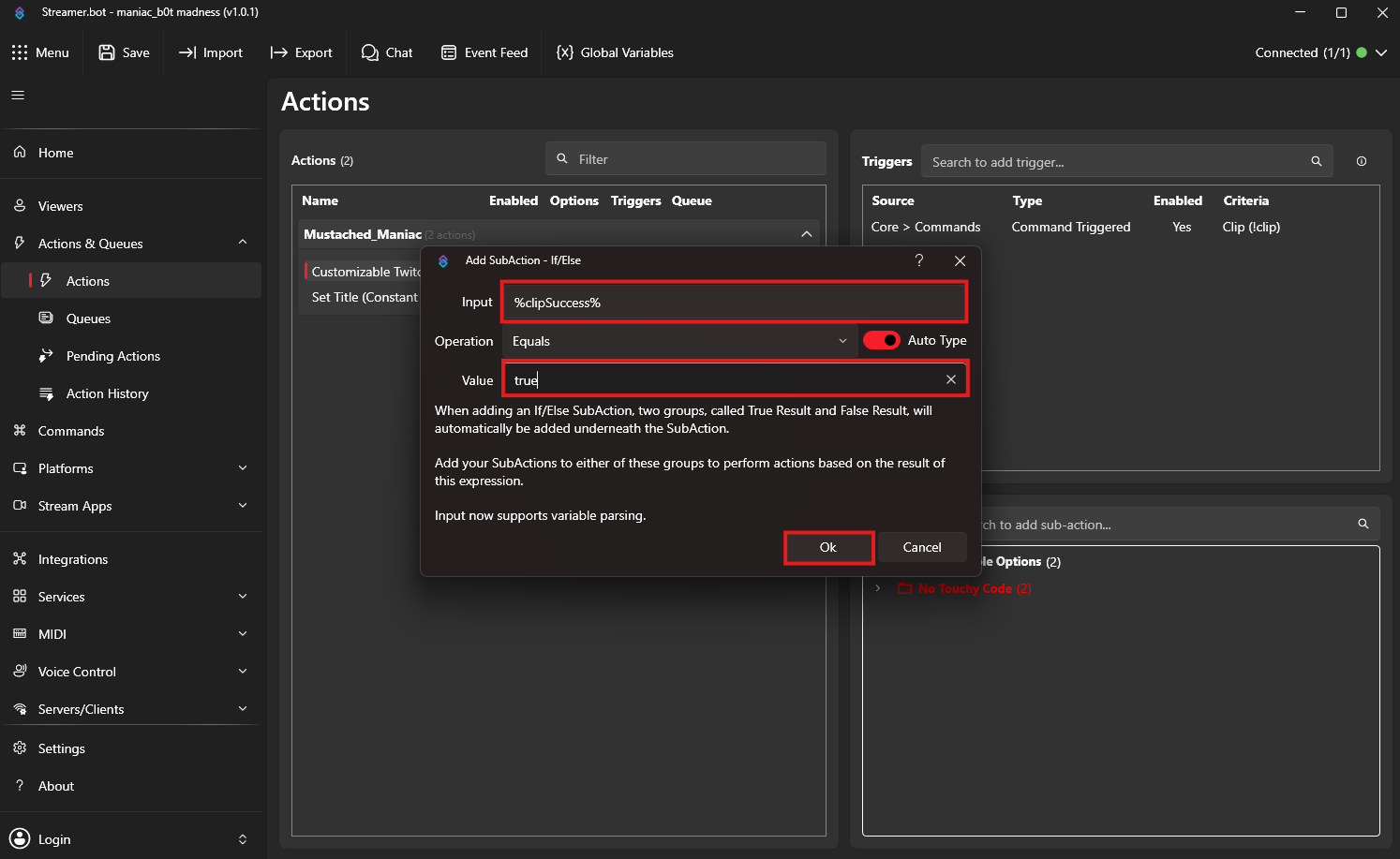
Right-Click on the
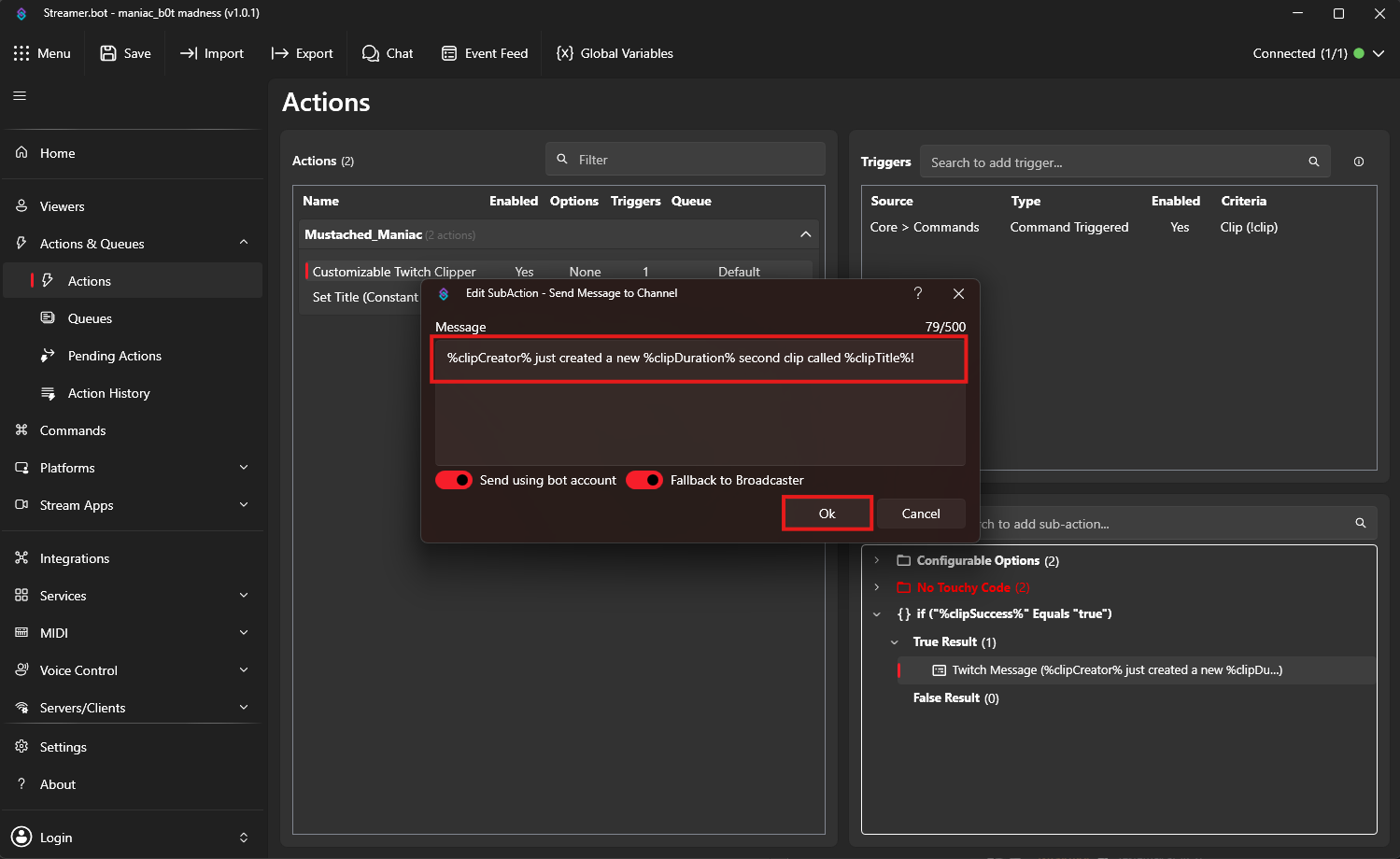
True Resultsection, Press Add -> Twitch -> Chat -> Send Message to Channel
- In the
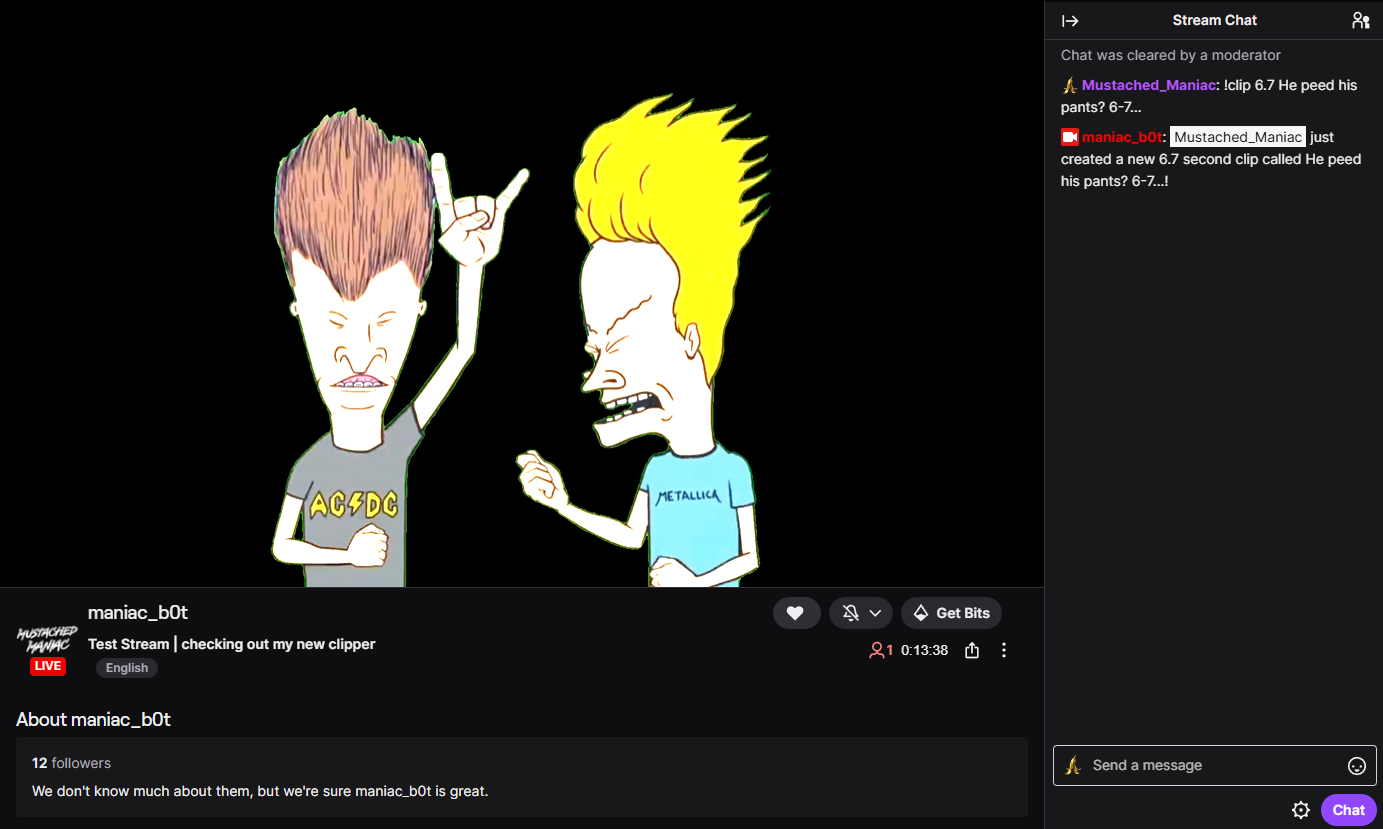
Messagefield, type:%clipCreator% just created a new %clipDuration% second clip called %clipTitle%!
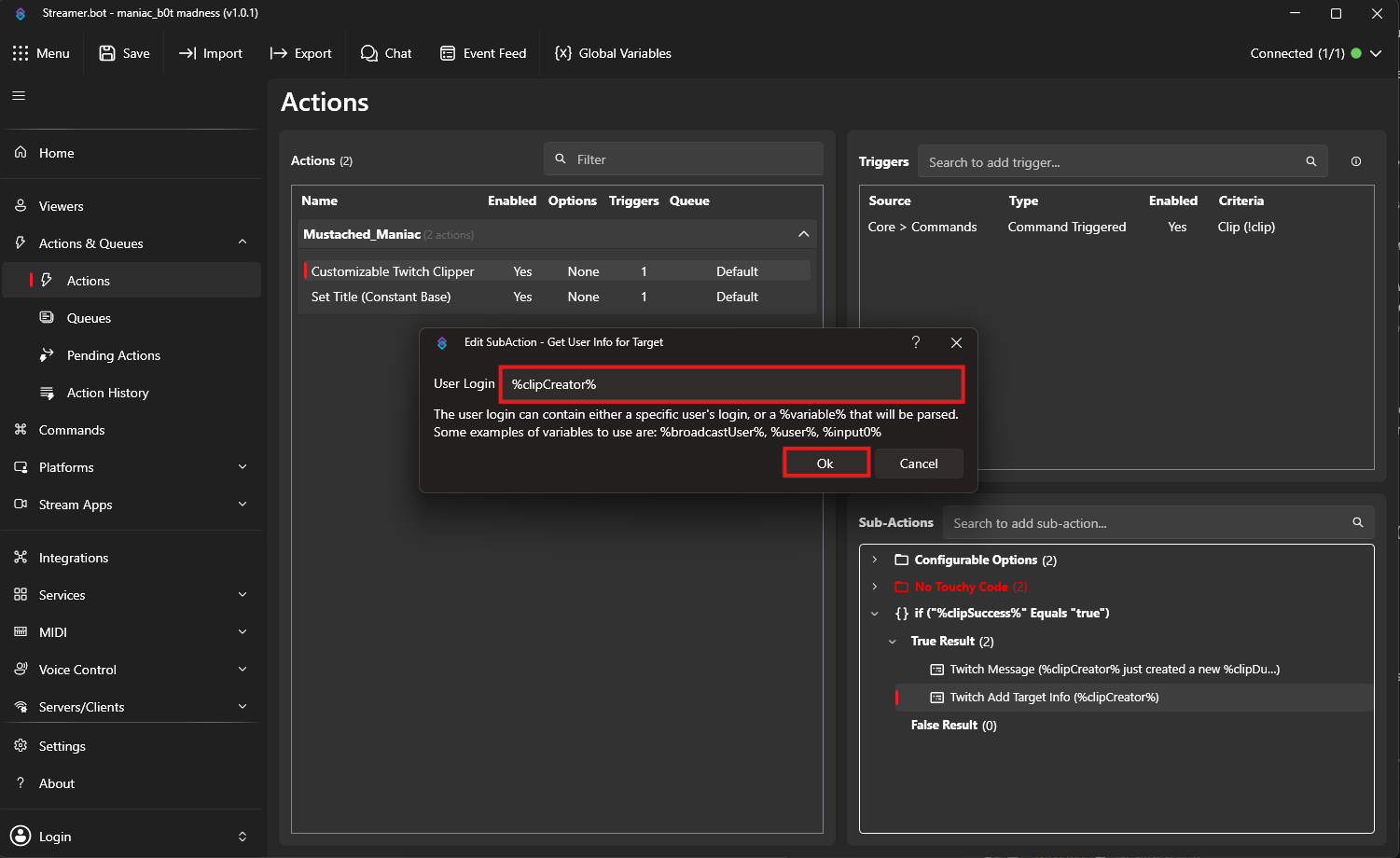
OPTIONAL (If you want the user's avatar in Discord). Right-Click on the
True Resultsection, Press Add -> Twitch -> User -> Get User Info for target
- In the
Userfield, type:%clipCreator%
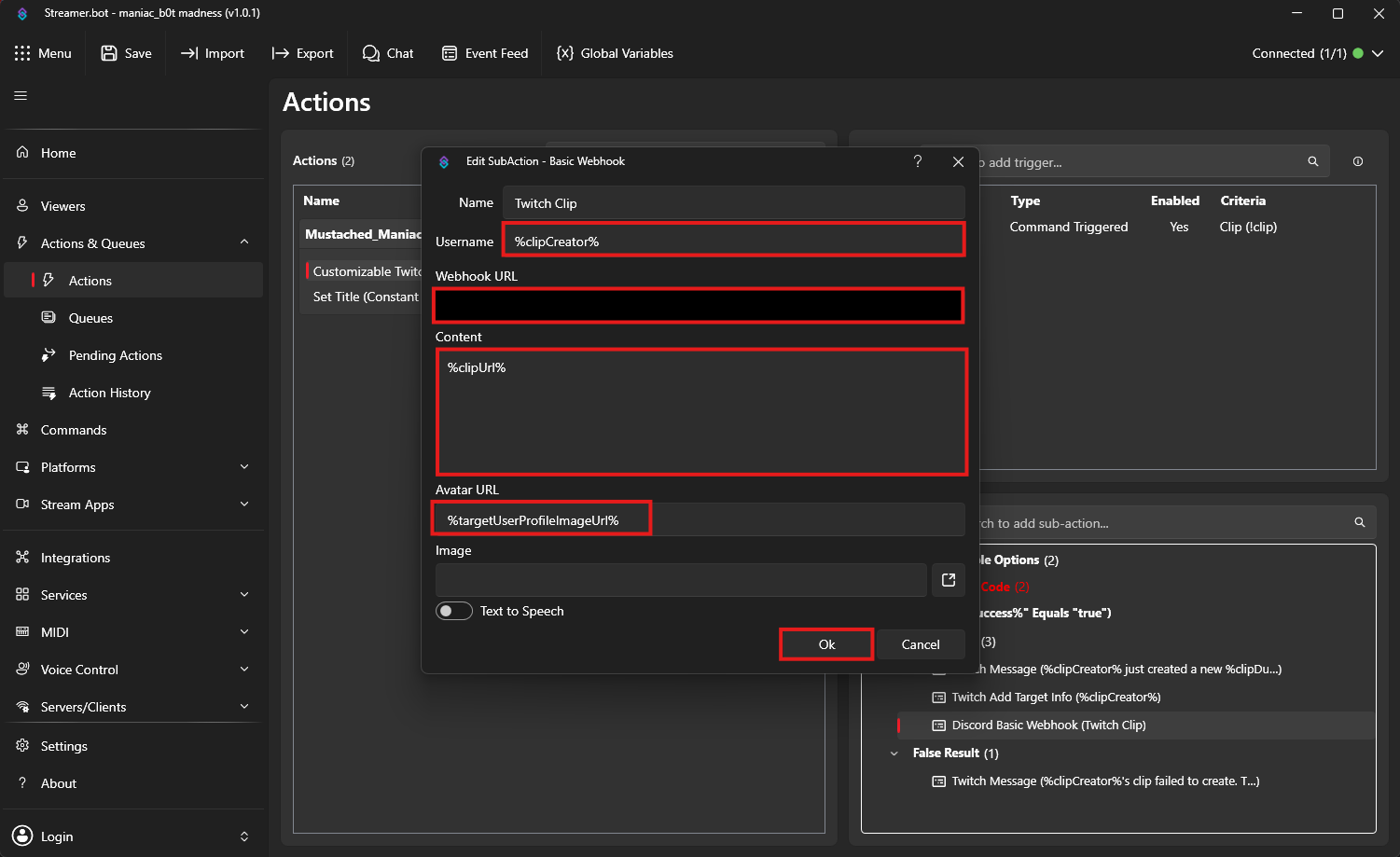
Right-Click on the
True Resultsection again, Press Add -> Integrations -> Discord -> Basic Webhook
- In the
Usernamefield, type:%clipCreator% - In the
Webhook URLfield, paste:THE WEBHOOK URL LINK FROM YOUR DISCORD SERVER - In the
Contentfield, type:%clipUrl% - In the
Avatar URLfield, type:%targetUserProfileImageUrl%
Right-Click on the
False Resultsection, Press Add -> Twitch -> Chat -> Send Message to Channel
- In the
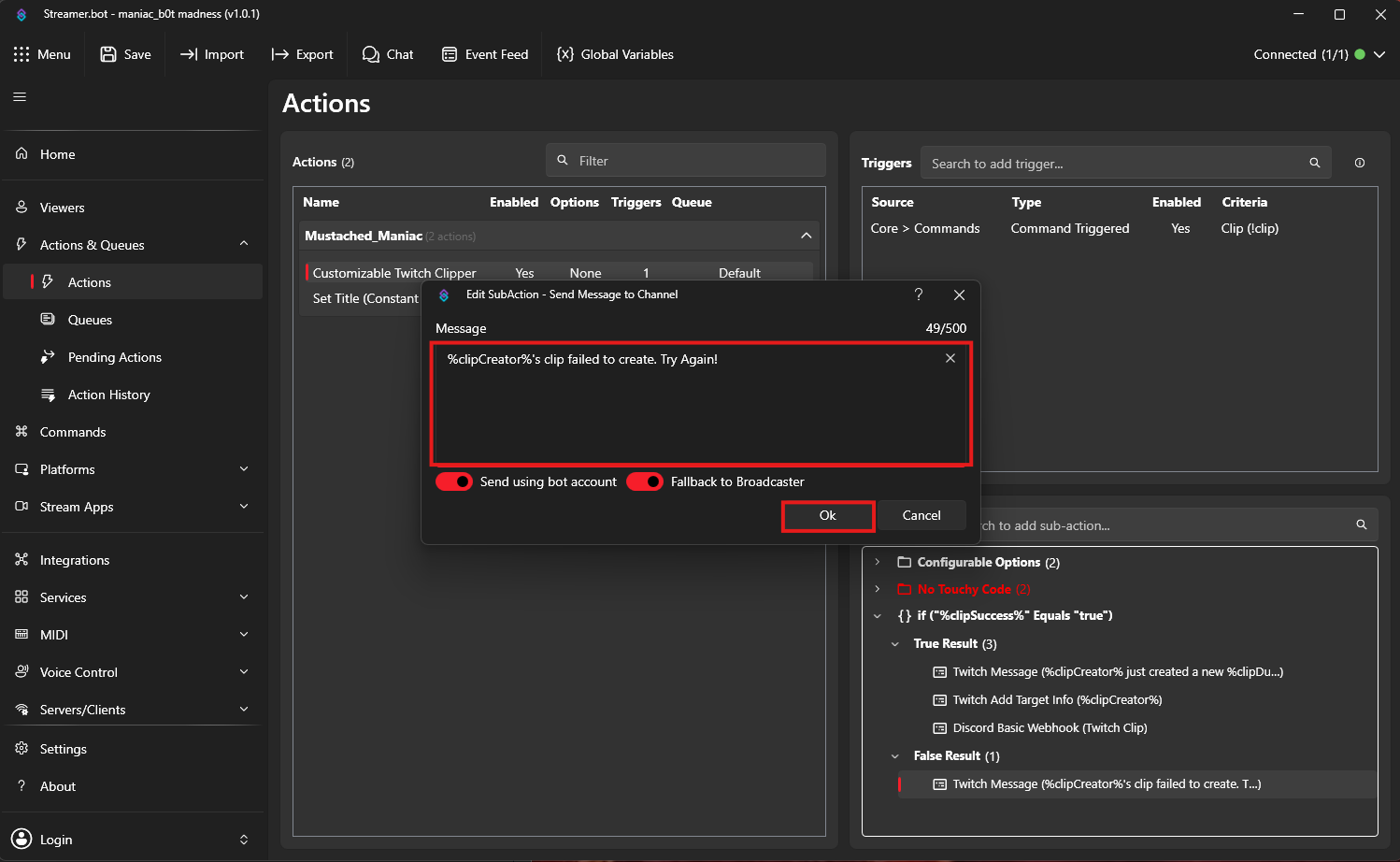
Messagefield, type:%clipCreator%'s clip failed to create. Try Again!(or whatever other message you'd like on failure).
Custom Twitch Clip Creator Results
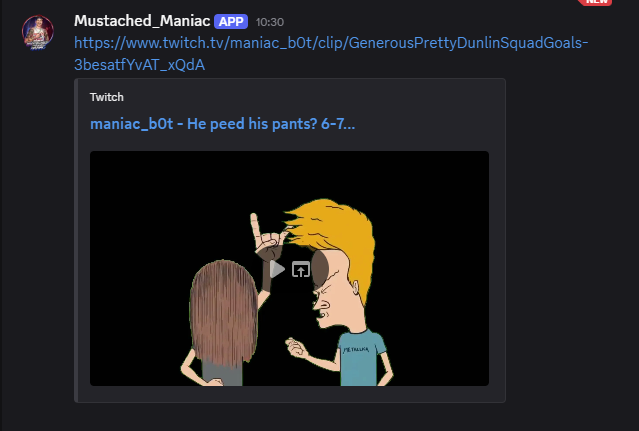
Congratulations... You have successfully set up the Custom Twitch Clip Creator! Get out there and let chat cause some chaos!
Frequently Asked Questions
- Q: How do I change the default clip duration?
- A: You can change the default clip duration in the
Configurable Optionssection of the action. Simply set theclipDurationto your desired value, or use it WITH the command.
- Q: Why does it show that I created the clip on Twitch when %clipCreator% was my super cool friend?
- A: As explained above, it will ALWAYS show the broadcaster. This is due to a Twitch API limitation with the creation of the clips.
- Q: Why doesn't the profile picture show up in Discord?
- A: Sometimes you need to 'Force Refresh' Discord to see the profile picture. Click on the channel, and press
CTRL + Rto force refresh the page.
- Q: Why does it say that the clip failed to create?
- A: I don't know, something in cyberspace messed up. Make sure that clipping is enabled on the channel. If it happens often, upload your logfiles to Discord and I will take a look at them.
- Q: What if 117 people try and clip the same thing?
- A: As long as it is actively clipping something, the action will reject subsequent clip attempts. Once it's completed, it's game on again!