
DTG Countdown Timer for Live Streaming
This Streamer.bot extension allows streamers to have one or multiple countdown timers running simultaneously, counting down to a specific time. Customized with different labels, colors, and sizes to fit your stream's aesthetic. When a timer reaches zero, it can trigger a Streamer.bot action, allowing for seamless integration with your streaming setup.
How-To Incorporate the Countdown Timers Video Tutorial
<< VIDEO COMING SOON >>
Download from Ko-fi
You MUST have the WebSocket server enabled in Streamer.bot for this extension to work.
To enable the WebSocket Server, click on Servers/Clients, then WebSocket Server and ensure Auto Start WebSocket Server is checked (and if not already started, press Start Server).
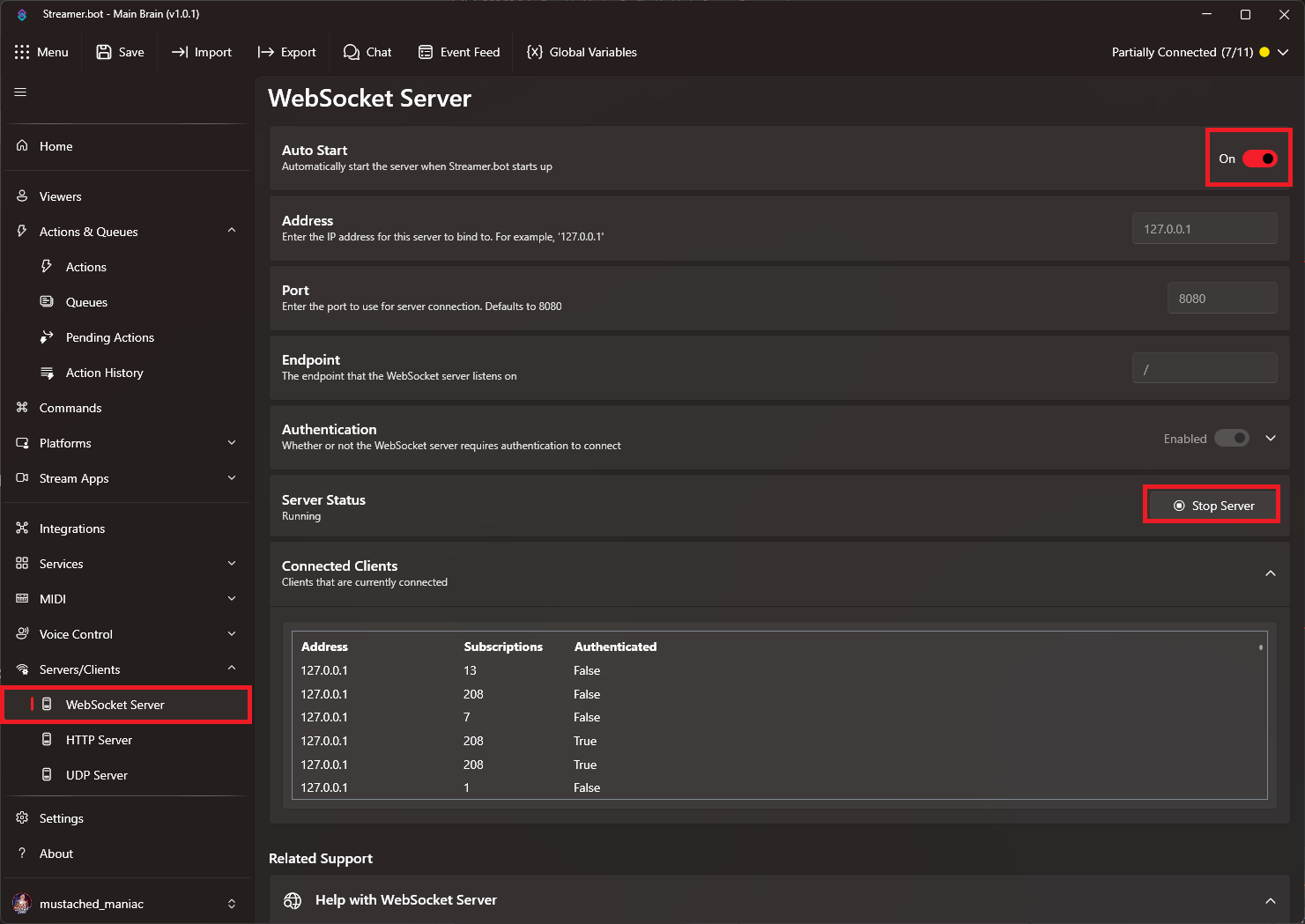
Setting up the Countdown Timers in Streamer.bot
In Streamer.bot click the Import button in the top menu. Drag the downloaded .mm file into the Import String field and click Import. You will see 6 Actions, and 5 Commands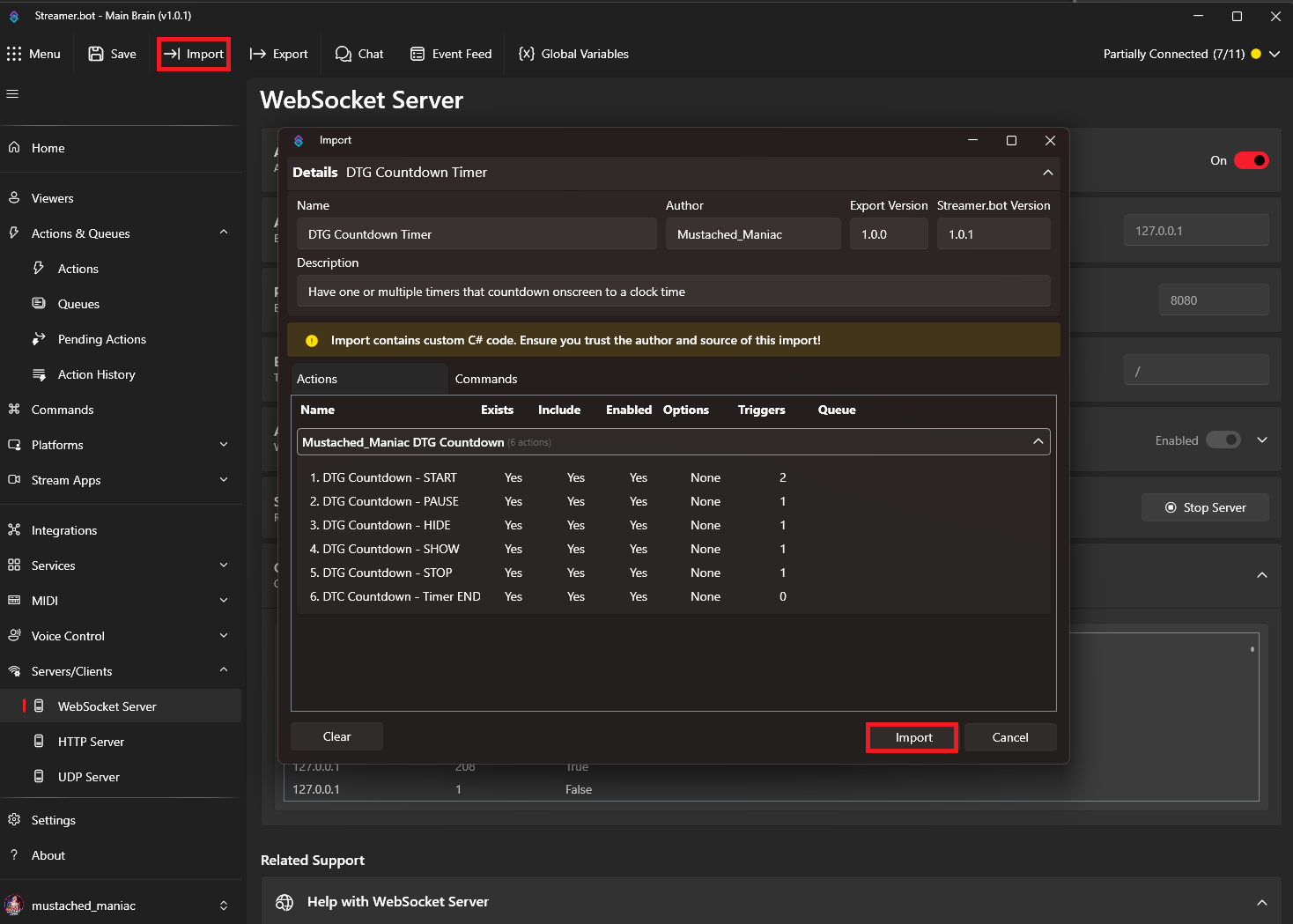
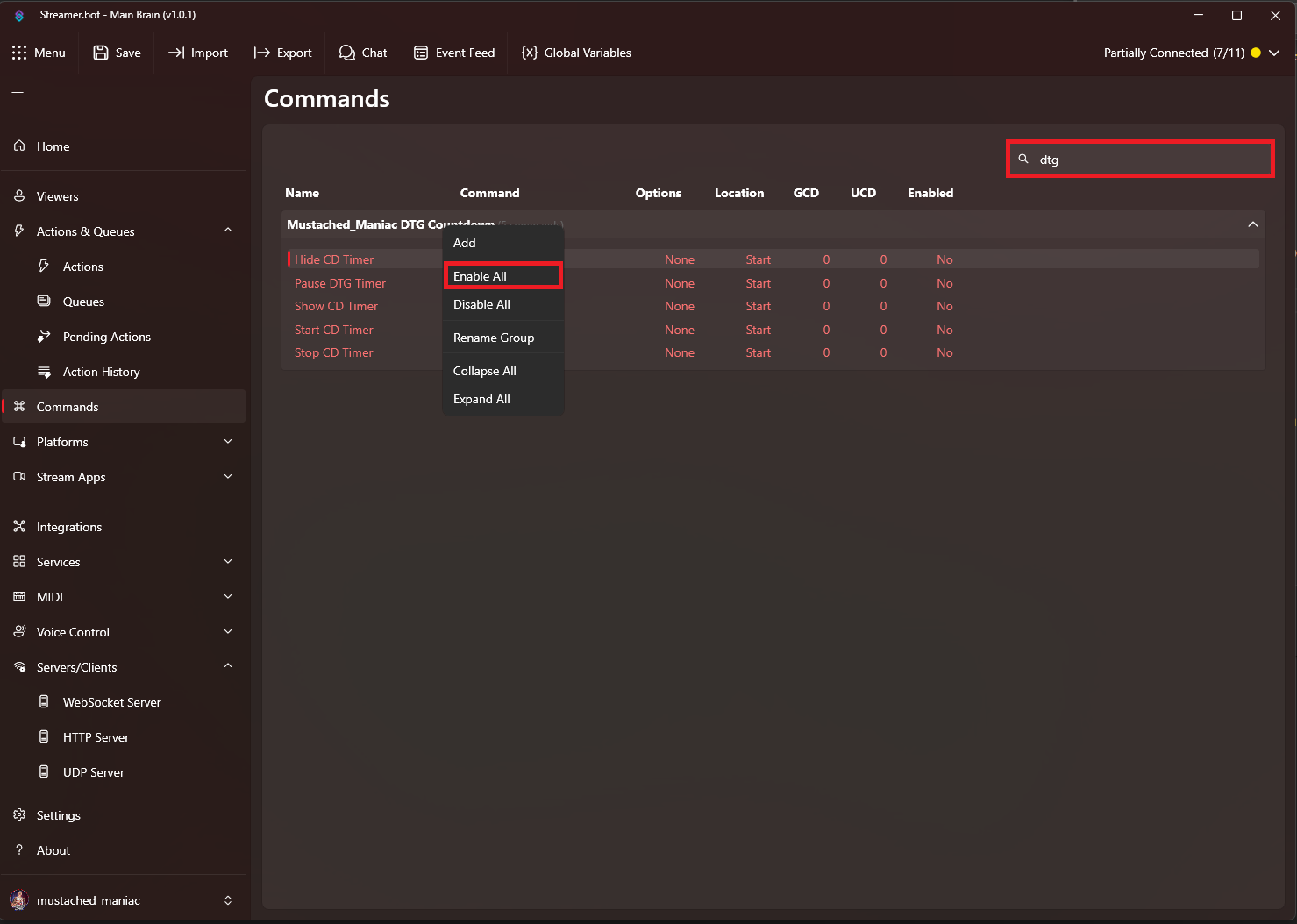
Once the extension is imported, navigate to the Commands tab, and scroll down to 'Mustached_Maniac Countdown Timer' and Right-Click on each of the 5 Commands and then press Enable
Available Actions for the Countdown Timers Extension
- START
- Moderators can start a timer with the Configurable Options using the
!startcdcommand. - Note - If the label changes, it will be considered a new timer
- Moderators can start a timer with the Configurable Options using the
- PAUSE
- Moderators can pause a timer using the
!pausecdcommand. - Note - an index number is NOT provided, it will pause the most recently started timer
- Moderators can pause a timer using the
- HIDE
- Moderators can hide a timer using the
!hidecdcommand. - Note - an index number is NOT provided, it will hide the most recently started timer
- Moderators can hide a timer using the
- SHOW
- Moderators can show a timer using the
!showcdcommand. - Note - an index number is NOT provided, it will show the most recently started timer
- Moderators can show a timer using the
- STOP
- Moderators can stop a timer using the
!stopcdcommand. - *Note - an index number is NOT provided, it will stop the most
- Moderators can stop a timer using the
- Timer ENDED
- This action is triggered automatically when a timer reaches zero OR a timer is manually stopped. You can customize this action to perform any tasks you want, such as sending a chat message, playing a sound, or triggering other actions in Streamer.bot.
|Arguments Available | Value | Description|
|--- | --- | ---|
|
%timerId%| 1 | Will be in the indexed number of the timer that ended (based on order started) | |%timerLabel%| New Year's Even | The label of the timer that ended | |%timerCompleted%| true | Whether the timer reached zero (true) or was stopped manually (false) | |%timerStopped%| false | Whether the timer was stopped manually (true) or reached zero (false) |
- This action is triggered automatically when a timer reaches zero OR a timer is manually stopped. You can customize this action to perform any tasks you want, such as sending a chat message, playing a sound, or triggering other actions in Streamer.bot.
|Arguments Available | Value | Description|
|--- | --- | ---|
|
Use the above arguments in the 'Timer ENDED' action to customize your response based on which timer ended and how it ended.
Adding the DTG Countdown Timers to your broadcasting software
You can use the countdown timers straight out of the box and it will work just fine.
Navigate to the
ScenesTab and press+to create a newScene(you can name it whatever you'd like)
On your new
Scene, Click on theSourcesTab and press the+to create a newBrowser Source(name is irrelevant again)
Double-Click on your newly created
Browser Sourceand edit the URL to the one provided
https://mustachedmaniac.com/widgets/DTG_Countdown_Timer
Congrats, you're ready to start using the DTG Countdown Timers!!
If you'd like to further customize it, use the tool below to tweak things like color options, alignment, etc.
When using the tool below, toggle a paramter to the On position, and then press the Update URL button to see a live preview. You can then copy the newly generated URL into your browser source to have the changes reflect on your version.
Customizing Countdown Timers to Match your Asthetic
There are several URL parameters that can be added to the end of the link above to customize the timers to your liking.
Special Note-The container has a white background and the font is white by default, to visibly see you changes, enable the 'Font Color' Option and select anything other then white
Live Preview
| Parameter | Example | Description |
|---|---|---|
| host | 192.168.1.1 | Only needed if your Streamer.bot websocket address is NOT on 127.0.0.1 |
| port | 8118 | Only needed if your Streamer.bot websocket port is NOT on 8080 |
| endpoint | "/stuff" | Only needed if your Streamer.bot websocket endpoint is NOT on "/" |
| password | "mYsEcReTp@$$w0rd" | Only needed if you have authentication enabled on your Streamer.bot websocket |
| align | left | Set the text to be aligned to the left / center / right of the box (default to center) |
| font | Roboto | Accepts system and Google fonts |
| fontColor | red | Pick a different font color. Accepts names or hex values (defaults to white) |
| bg | #000000 | Pick a different background color. Accepts names or hex values (defaults to no background/transparent) |